
AI Studio Audio Layers: Score, Voice, and SFX on the Same Canvas
How VberAI Studio handles game audio: audio layers and floating tools, music/voice/SFX, libraries and asset management, track editing; attach audio to Spine, frame sequences, and video; generate SFX and character voices from text.
- AI Studio
- VberAI
- game audio
- SFX
- music
- voiceover
- Spine
- game development
In game projects, UI, Spine / frame sequences, and cutscene video are often locked visually on a canvas first. If audio always lives in a separate tool chain, sync points, asset versions, and export formats scatter across pipelines.
VberAI Studio (AI Studio) treats audio layers as part of the same workspace: selectable waveforms, floating tools, music / voice / SFX flows, audio libraries and resource management, plus attaching sound to Spine, frame sequences, and video. Indies and small teams can stage UI, animation, and audio in one project context, then export into the engine pipeline.
Audio layers
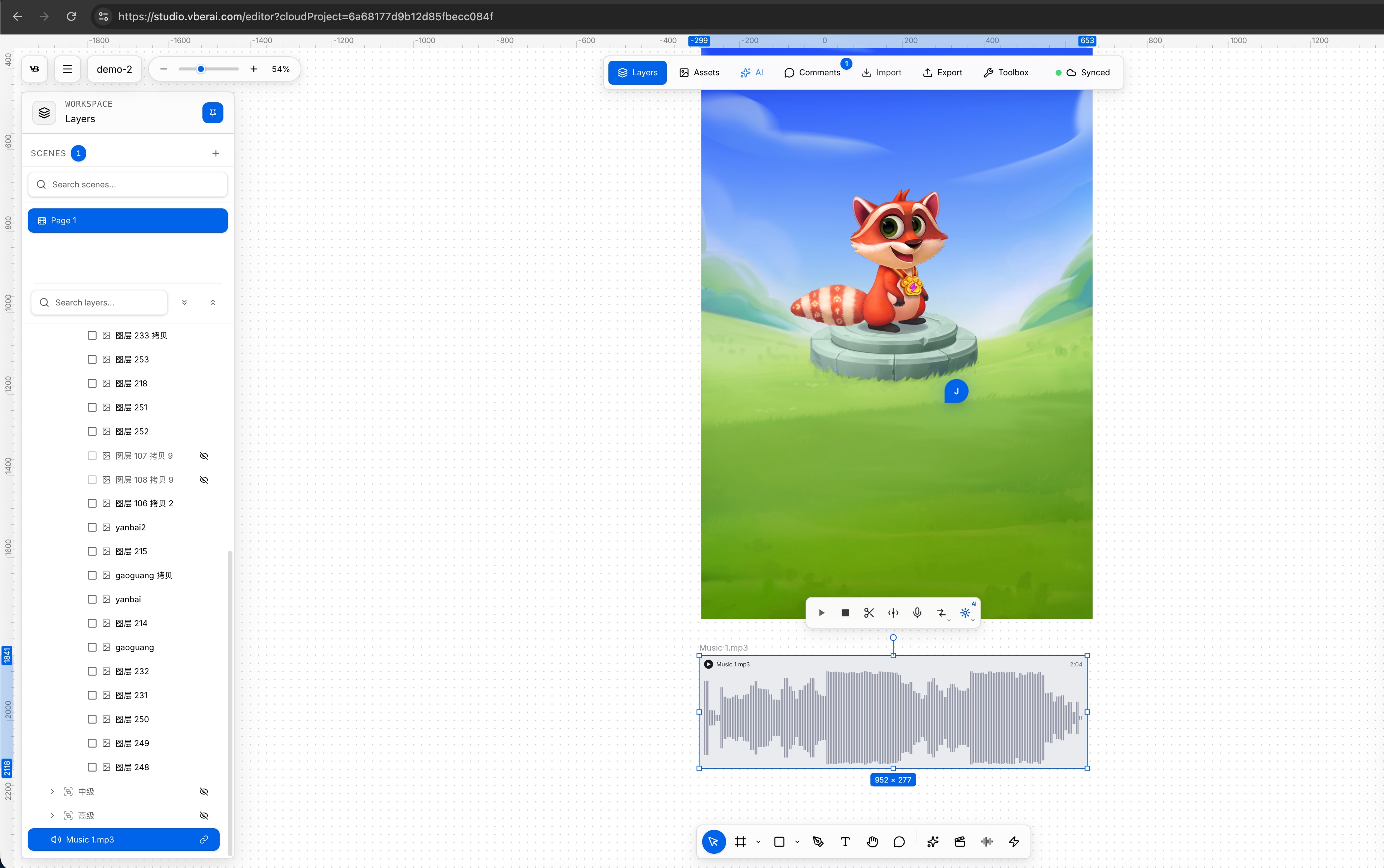
In AI Studio, audio exists as a layer, alongside visuals in the Layers workspace. When selected, you see waveform and duration on the canvas; the layer list shows a matching audio entry so you can manage it with characters, UI, and scene elements.
Typical uses:
- BGM / looping score
- Dialogue, narration, monster VO
- UI and gameplay one-shots
- Stems extracted from video
Floating toolset
With an audio layer selected, a floating toolset appears above the canvas. Left to right:
- Play
- Stop
- Trim: adjust length (keep the region you need)
- Split: cut into multiple independent clips
- Save as voice preset: store for reuse
- Format convert: MP3 / WAV / FLAC / OGG / OPUS / M4A / AAC
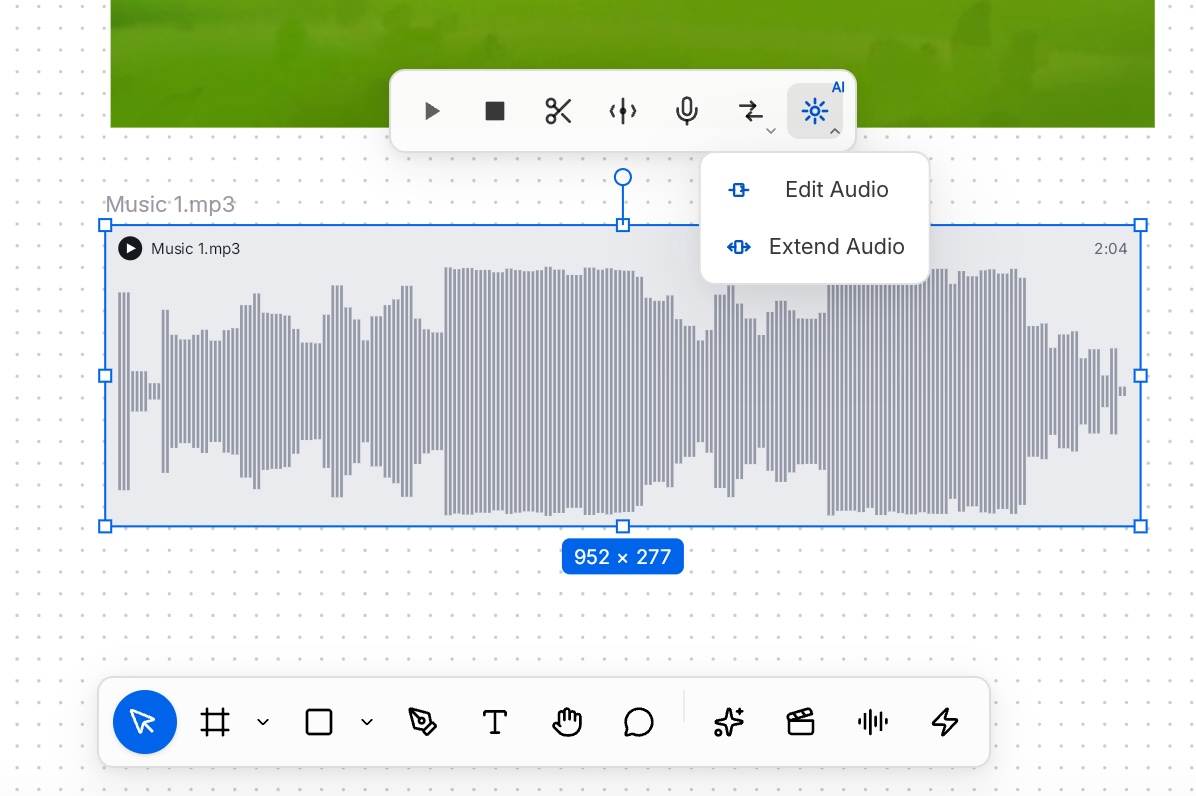
- AI SFX edit, AI audio extend
Common production flow: trim to action or shot length, split UI / hit one-shots, save approved timbres as presets, convert for engine conventions before export, then use AI edit / extend when you need content changes or longer duration.
AI audio editing
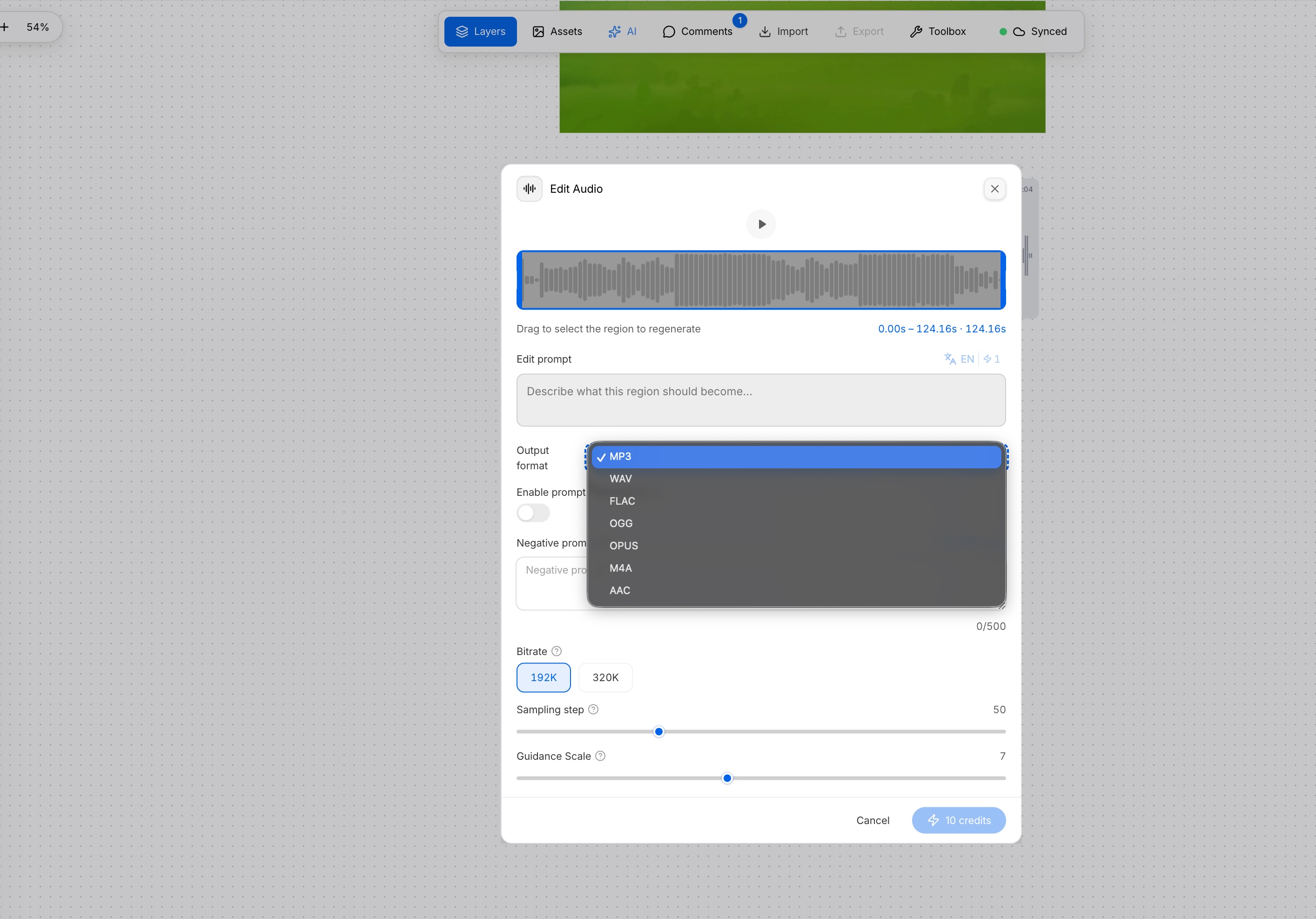
AI SFX edit opens Edit Audio: drag-select a region on the waveform, describe the target in natural language (optional negative prompt); output format and bitrate are adjustable. For game pipelines, WAV / OGG and similar engine-friendly formats can move straight into asset intake. AI audio extend lengthens existing material or produces variants.
Music, voice, and SFX
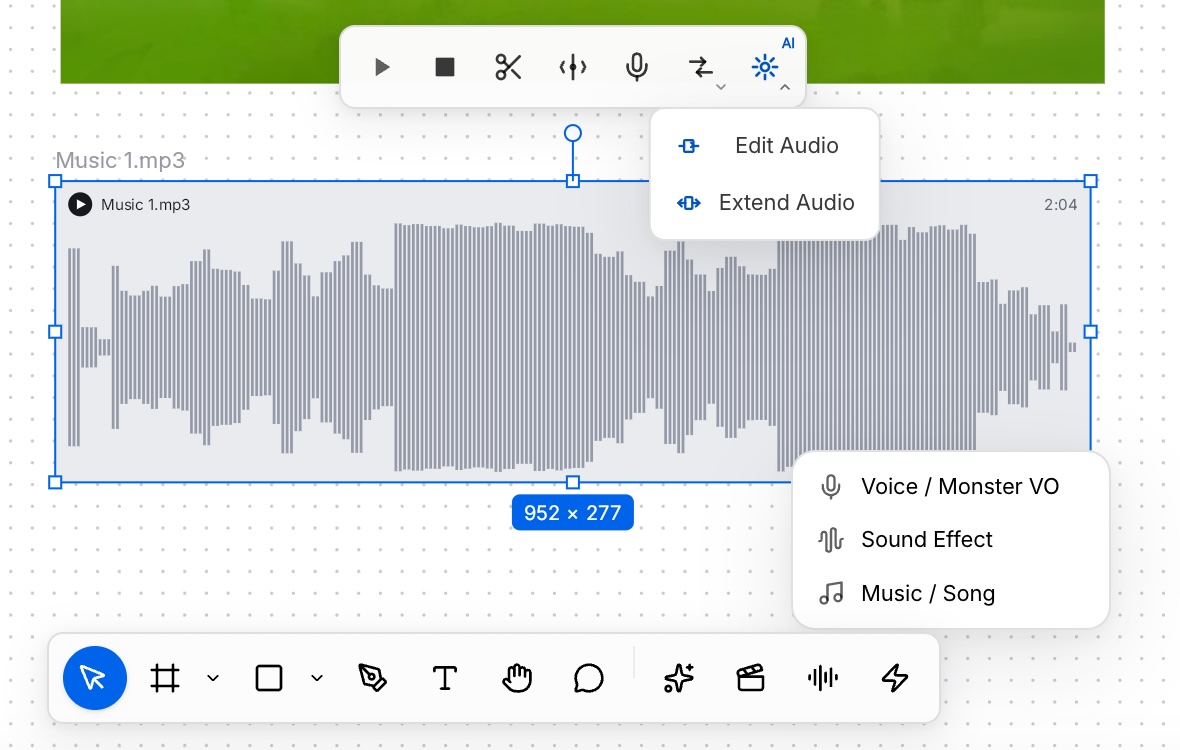
Audio is organized the way game teams already think about it:
- Music / Song: BGM, themes, beds
- Voice / Monster VO: character VO, narration, creature sounds
- Sound Effect: clicks, pickups, hits, short ambience loops
Covers video dubbing / scoring and animation (including Spine and frame sequences) VO / score. Picture and sound stay in one canvas project—attach audio per shot or clip instead of exporting a final movie and re-attaching elsewhere.
Audio on Spine, frame sequences, and video
Beyond standalone audio layers, you can attach audio and related tools to:
- Spine animation
- Frame-sequence animation
- Video
Typical combinations:
- Extract video audio to a standalone file, then trim, reuse, or re-score
- Dub / score Spine, frame sequences, or video to match motion or shot timing
- With multiple tracks, use layers and track view for BGM, dialogue, and SFX relative placement
Same-project A/V helps align hit frames, skill casts, and UI pops with SFX start times—fewer engine-side timestamp guess loops.
Audio resource management and library
Project audio is organized via audio resource management and an audio library. For voice, Voice presets supports search, create, and clone of preset timbres (e.g. a fixed character voice) so the same role stays consistent across lines and scenes.
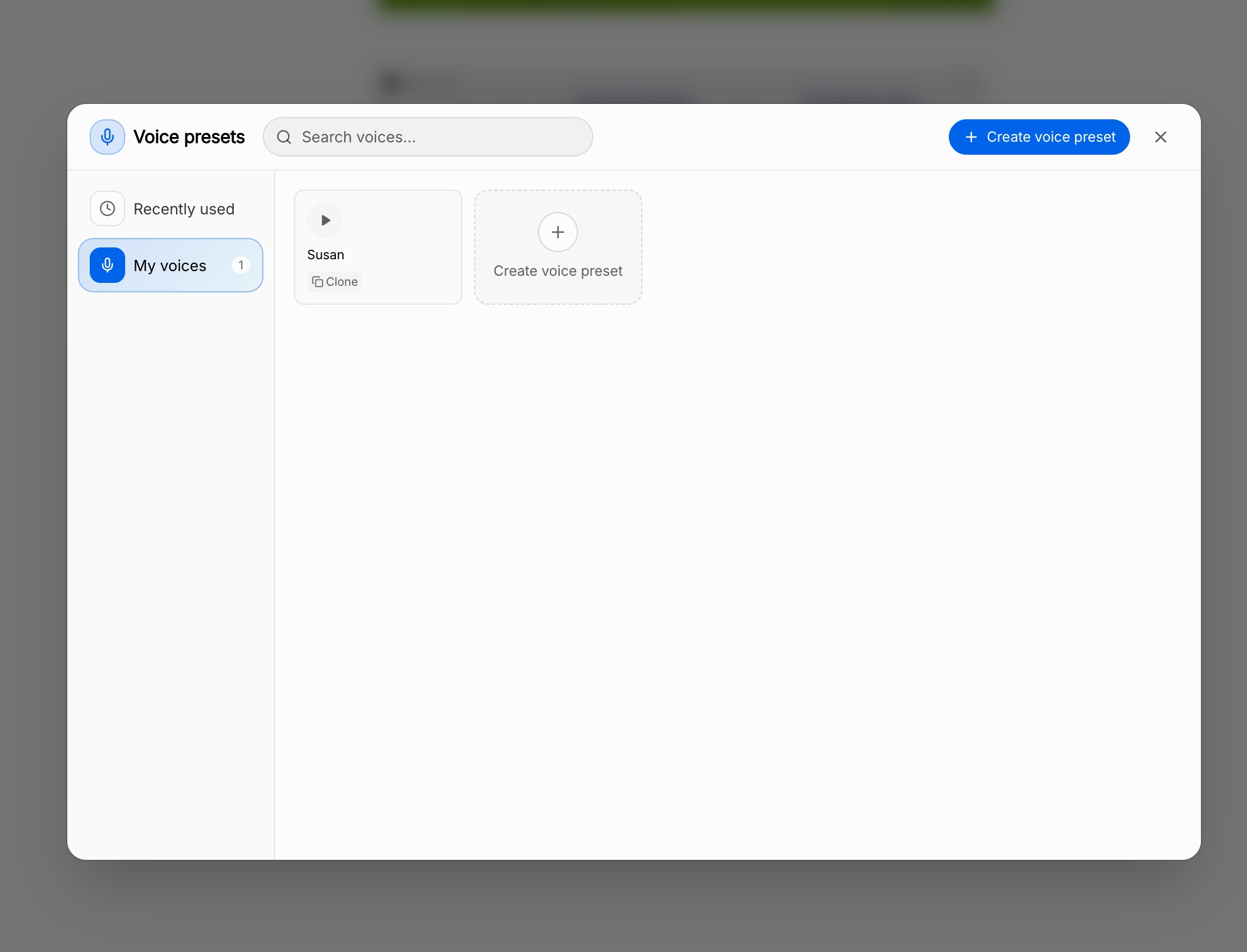
Usual split: the library holds reusable masters (timbres, common SFX, theme beds); canvas layers handle trim, extend, and attach for the current level or shot.
Multi-select audio layers and track editing
To stage several sounds together, multi-select audio layers and enter audio track editing: compare timelines side by side, adjust start and length—suited to cutscenes, multi-character dialogue, and BGM + ambience + key SFX on one board.
For level audio design, the track view answers “who plays first, how much overlap, when it ends”—not single-clip timbre generation.
Text-generated game SFX and character voices
When finished assets are missing, generate from text:
- Game SFX (UI feedback, combat feedback, short ambience, etc.)
- Character voice / VO-oriented assets
Results become audio layers for trim, AI edit, or attach to Spine / frame sequence / UI events. Useful for prototype bed tracks, then replace or polish by feel.
Video processing tools
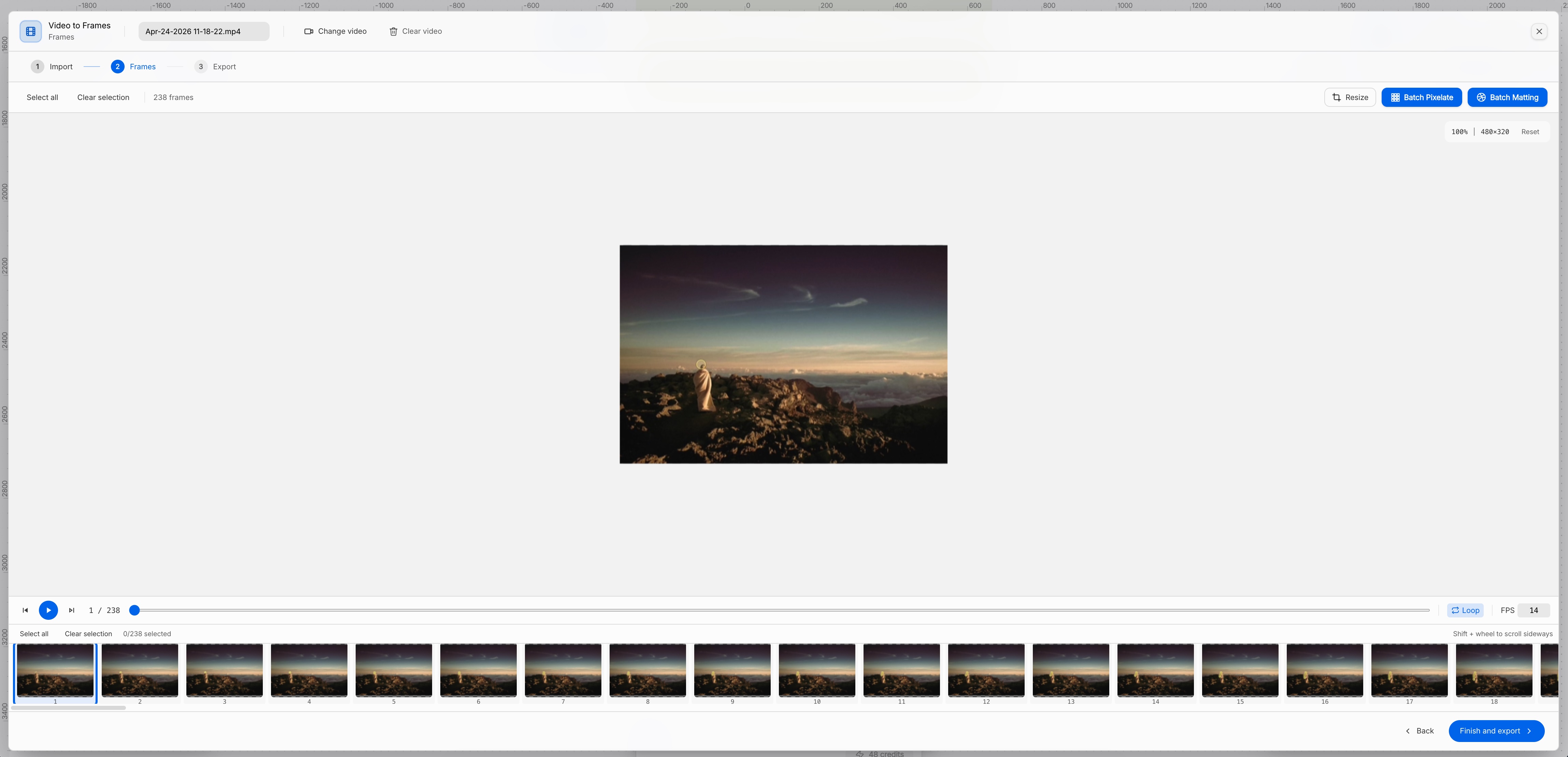
Alongside audio, AI Studio includes video-side tools. Example: Video to Frames—import video, enter Frames, browse all frames, set FPS, batch resize / pixelate / matte, then export as a sequence.
Teams that go “footage / final cut → frame sequence / sprites” can continue into adding audio and score on those sequences.
Capability map
| Module | Role |
|---|---|
| Audio layers | Selectable waveforms, managed with visuals in one project |
| Floating toolset | Play, stop, trim, split, save voice preset, format convert, AI SFX edit / AI audio extend |
| Music / voice / SFX | Video and animation (incl. Spine, frame sequences) |
| Media attach | Spine, frame sequences, video; extract video audio to a file |
| Resources & library | Audio resource management, audio library, Voice presets |
| Track editing | Multi-select audio layers for parallel alignment |
| Text generation | Game SFX, character voices, etc. |
| Video tools | e.g. Video to Frames for frame-level and batch work |
Canvas structure and export still target Unity / Godot / Cocos-style game projects: arrange and prepare audio on the canvas, then implement playback and mixing in-engine.
Keep reading
More guides you might like
Scripts Compile but Hierarchy Is Off? Game Dev UI Handoff and MCP Checklist
For Unity / Godot / Cocos programmers: why Cursor scripts do not fix UI shell layers; acceptance checklist after design import, when Unity MCP / Godot MCP pay off, and binding logic after Studio Prefab export.
- game-dev-ai
- Unity MCP
- Godot MCP
- Cocos MCP
Build a 3D RPG with Unity MCP: Third-Person Control, Combat, and Quests
A practical Unity MCP walkthrough for a playable 3D RPG prototype—third-person movement, real-time melee, enemy state machines, and quest wiring in Cursor or other MCP AI IDEs. Polish UI later when you need it.
- Unity MCP
- 3D RPG
- Unity
- combat
Floating Damage Numbers: Handoff Acceptance and Engine Implementation
Fail criteria when popups blur, miss glyphs, sort wrong, or stutter; choosing TMP vs bitmap digits, pools and Canvas order, Unity UGUI acceptance steps, and how design digit art plugs in.
- game-ui-design
- game-dev-ai
- ui-to-engine
- bitmap-font