
Translate UI / Game UI One-Click Translate: VberAI Studio (Figma·PSD, Layout Fixed)
Translate UI for game UI, Figma, and PSD in VberAI Studio: AI one-click copy localization—layout, design, structure, and hierarchy stay fixed. ≠ Google AI Studio.
- vberai
- ai-studio
- ui-translate
- ui-translation
- game-ui-translate
- localization
- i18n
- figma
- psd
- game-ui
- tutorial

VberAI Studio (≠ Google AI Studio) supports one-click translate: take a full-screen UI mockup or imported Figma / PSD text layers and AI-translate the interface copy into a target language—text only. Layout, visual design, structure, and hierarchy stay as-is—you don’t rebuild a UI per language or loop through “edit copy → rearrange → re-slice.”
Product: AI Studio. After translation you can still chain one-click reskin, in-place slicing, and engine export. Glossary: UI translation.
Why multilingual UI costs so much time
When games and apps enter more markets, design usually looks like this:
- Lock a primary-language visual (full-screen mock or Figma / PSD)
- Hand off button, title, badge, and tab copy to translators
- Art / UI pastes strings back, fights length blowouts, wrapping, and alignment
- Export multilingual slices into Unity / Godot / Cocos
The expensive part is rarely “translating sentences.” It’s cloning the same UI layout N times: structure unchanged, yet every language burns paste, frame tweaks, alignment, and QA. One-click translate targets that stretch—geometry and hierarchy locked; only readable copy swaps.
| Traditional multilingual UI | VberAI one-click translate | |
|---|---|---|
| Process | String sheet → paste into mock → resize / align → re-slice | Select artboard / layers → pick target language → AI translates copy |
| Structure | Length drift often forces rearrange | Layout, design, structure, and hierarchy stay fixed |
| Input | Often loose exports or tables | Full-screen mock, or Figma / PSD layers (per current Studio) |
| Best for | Heavy compliance review, extreme reflow | Fast multilingual visuals, multi-locale comps, event-page localization |
UI translation / one-click translate
In Studio terms, a shippable definition is:
- Translate — Turn on-screen readable copy into the target language (menus, buttons, badges, helper text, and so on).
- Copy only — No panel redraw, no theme reskin; icons and decoration layers stay in place as much as possible.
- Structure stays — Layout, relative positions, size relationships, and layer order match the pre-translate source so you don’t rebuild per language.
- Inputs — Canvas UI mockups, plus imported Figma / PSD text-related layers (entry points follow the product UI).
It differs from one-click reskin: reskin changes the visual theme (seasonal, IP, and so on); translate changes the language of on-screen copy—neither changes layout. Typical flow: lock the UI layout → produce multilingual mocks → optional theme reskin → slice into the engine.
Before / after: same home screen, copy language only
Below is the same card-game home screen in VberAI Studio before and after translate: nav, mode cards, side rail, and bottom bar stay put; only the language of the copy changes. The pair shown is an example—the target language in the screenshot is not tied to this page’s locale.
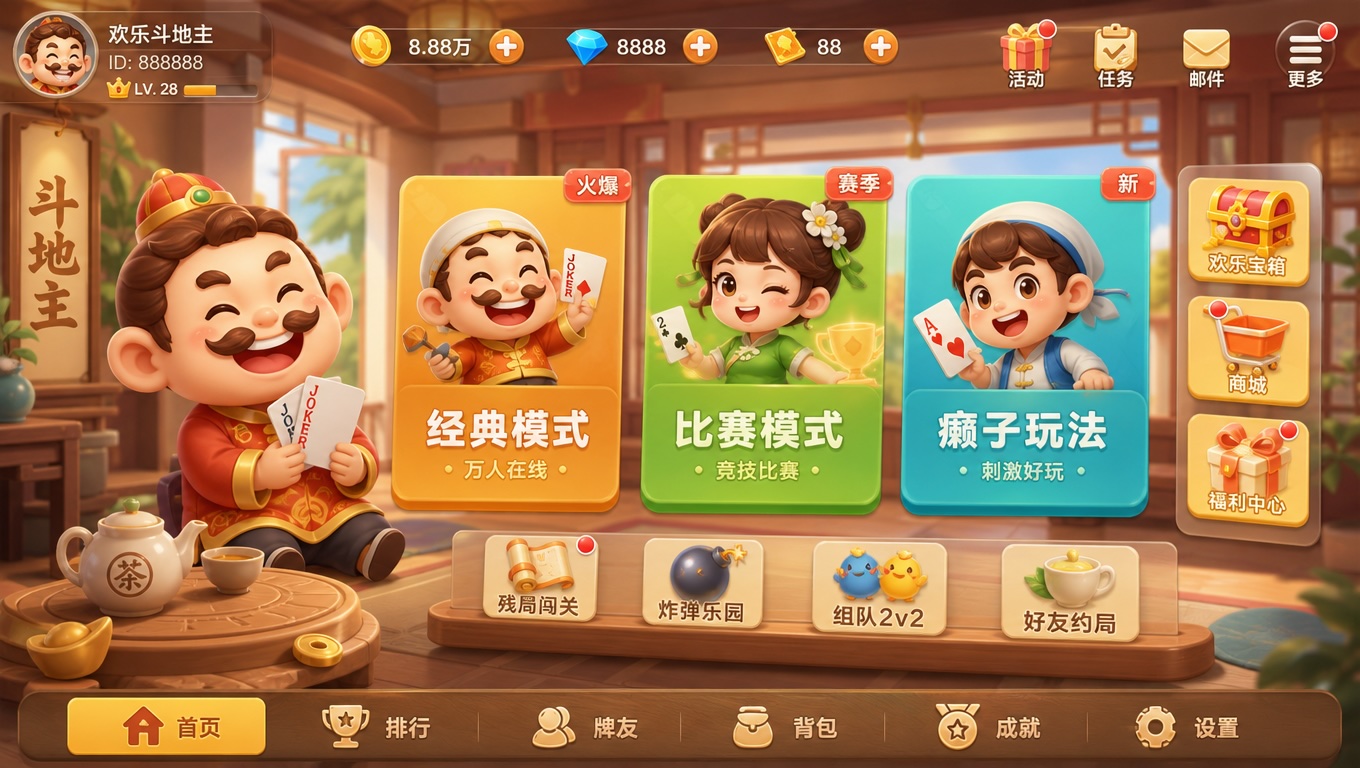
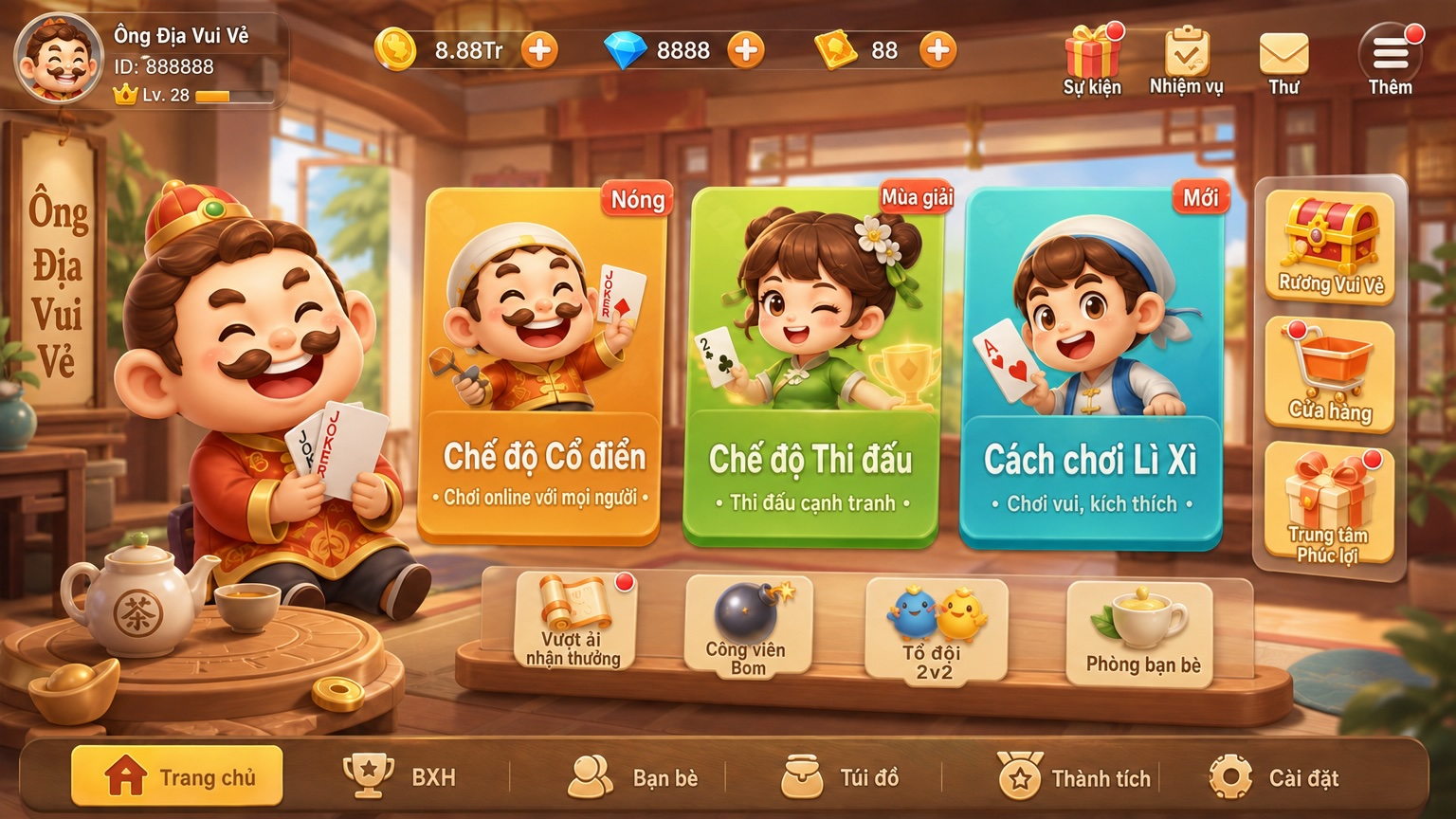
Top-bar events / tasks / mail, the three mode columns, shop / rewards side entries, and the home-to-settings tab bar keep one-to-one geometry. Labels such as “Classic Mode / Tournament Mode” shift to the target language without redrawing the whole screen.
Steps
1. Prepare the design
Use a clear input:
- A full-screen UI mock on the canvas (AI-generated or imported)
- Figma / PSD already imported into Studio (prefer text on its own layers for recognition and write-back)
Clean control bounds and readable text layers make post-translate QA steadier.
2. Select the artboard or related layers, open one-click translate
Select the screen (or text-related layers) to localize, then open AI Translate / one-click translate from the toolbar (labels follow the product UI).
3. Choose the target language and run
Pick the target language (for example RU → EN, EN → ZH, or other regional locales). Confirm and run; time and credits follow the Studio panel.
4. Compare: words changed, frames did not drift
Check:
- Primary buttons, mode cards, and tab labels still sit in the same relative positions
- Whether long translations overflow (some locales may need slight type or copy tweaks)
- Proper nouns, brand names, and gameplay terms that need human lock-down
- When engineering needs the assets, continue with slice / export or an existing layered import path
How it stacks with other Studio paths
| Need | Path |
|---|---|
| Same layout, multilingual copy mocks | This article: one-click translate |
| Same layout, seasonal / theme reskin | One-click reskin |
| Flat full-screen art into the engine | In-place slicing, split mock → engine |
| Existing Figma / PSD layers | Figma→Unity and related posts—import then translate, or translate then export |
| Bind buttons and scripts in-engine | Engine MCP workflow |
Boundaries
- One-click translate locks geometry and hierarchy; very long strings, vertical calligraphy décor, or art text baked into pixels still deserve a human pass.
- Gameplay slang, legal copy, payments, and age ratings need localization review—don’t ship machine output alone.
- Final in-engine i18n (TMP / string tables / hot updates) still lands in the project; Studio speeds design-side multilingual visuals.
- VberAI Studio ≠ Google AI Studio, and it isn’t dumping a page into a web translator; see the comparison.
Wrap-up
Multilingual release isn’t only “can you translate.” It’s whether the same UI layout can be cheaply replicated across locales and language markets. VberAI Studio keeps “UI mock / Figma / PSD → one-click translate (copy only) → layout and structure unchanged” on one canvas, then optional reskin, slice, and engine export—less rebuild thrash, faster multi-market validation. Start here: AI Studio.
FAQ
Is UI translation the same as “translate UI”?
The phrases overlap: UI translation usually means localizing readable interface copy; translate UI often means turning a full-screen mock into another language. VberAI one-click translate covers both—copy only on full-screen UI or Figma / PSD text layers; layout, design, structure, and hierarchy stay fixed.
What is VberAI one-click translate?
In VberAI Studio, AI-translate copy on a full-screen UI or Figma / PSD-related layers while layout, design, structure, and hierarchy stay aligned with the source—only the text is replaced.
Does the layout really stay the same after translate?
Yes. The product goal is one-to-one UI layout geometry and hierarchy; QA focus is string length and proper nouns.
Does UI translation support Figma / PSD?
Yes—translate imported Figma / PSD layers in Studio (per current panel). Separate text layers usually work better.
Is this the same as one-click reskin or in-place slicing?
No. Translate changes language; reskin changes theme look; slicing turns a flat screen into engine-ready layers. You can chain all three.
What is it best for?
Multilingual home screens for worldwide release, event-page localization, side-by-side multi-locale comps, and speeding “visual multilingual mocks first, engine string tables later.”
Keep reading
More guides you might like
How to Set Up Cocos Creator MCP with Cursor and Claude (Video Tutorial)
Connect Cocos Creator MCP to Cursor or Claude: install the plugin, configure Model Context Protocol, and verify AI can control the editor.
- cocos
- cocos-creator
- mcp
- cursor
Mobile HUD Information Hierarchy: What to Show in Combat, Lobby, and Modals
HUD visibility and priority by game state; how it ties to Safe Area, floating text layers, and modal stacking—spec tables plus Play and device acceptance steps.
- game-ui-design
- game-dev-ai
- ui-to-engine
- hud
Cursor Broken After Cocos Creator MCP: Fix Connection by Symptom
Cursor looks “broken” after wiring VberAI Cocos Creator MCP: missing service, red MCP errors, connected but no tools. Check Cursor first, then jump the four-layer path to Creator extension, activation, and ports.
- cocos
- cocos-creator
- mcp
- cursor