
How to Generate Game Sequence Frames and Trailers with AI—Then Ship to Unity / Godot / Cocos
VberAI Studio generates game sequence frames and promo/story CG from text, image, or first–last frames; crop and split on canvas, then deliver to Unity, Godot, and Cocos. Includes a walkthrough, acceptance checklist, and why this does not replace Timeline / Sequencer.
- ai-studio
- game-video
- sequence-frames
- sprite-frames
- skill-vfx
- seedance
- kling
- veo
- unity
- godot
- cocos
- vberai
To produce shippable game sequence frames (skills / VFX / looping motion) or trailers / short story CG and bring them into Unity / Godot / Cocos, the bottleneck is rarely “which model looks flashier.” It is whether generation can go onto a canvas → crop / split frames → deliver per engine. VberAI Studio (AI Studio for short) puts that path on one game-asset canvas. It does not replace Timeline / Sequencer for live cutscenes.
| Spec | Detail |
|---|---|
| Product | VberAI Studio (≠ Google AI Studio) |
| Drivers | Text / image / first–last frame |
| Two outputs | Sequence-frame animation; trailers & story CG |
| After generate | Lands on canvas; crop, split frames, keep editing |
| Engines | Unity, Godot, Cocos |
| Boundary | Does not replace Timeline / Sequencer |
| Demo | YouTube aPOhMMrJ8KI |
Indie projects usually hit two gaps. One is in-package assets—run attacks, skills, and VFX loops that hang on Animation / Sprite. The other is external film—store trailers, openings, fixed-camera short CG. Both are “video,” but acceptance differs. Generic text-to-video often stops at an MP4 download. Game teams still ask: can we split frames, keep editing on a canvas, and hook the result in-engine? Below is one real pass through that flow.
Walkthrough video
Video: AI Studio: game sequence frames and trailer generation (VberAI YouTube)
The clip includes auto SFX. Screenshots follow canvas order and match the recording.
Sequence frames vs trailers: two acceptance bars
| Output | Typical use | Common in-engine form | Acceptance path |
|---|---|---|---|
| Sequence-frame animation | Characters, VFX, skill loops | Sprite sheet / frame animation | Split → import → loop check |
| Trailer / story CG | Store promo, opening, fixed short cutscene | VideoPlayer / media node | Final cut + audio → playback check |
Official capability, mapped to engineering:
- Sequence frames: one-shot character, VFX, and skill frame sequences
- Trailers and story / CG: short films in one place
- Multiple drivers: text, image, first–last frame
- On canvas: split frames, edit, deliver to engine
It covers “generate → editable asset,” not replacing Timeline / Sequencer for live cutscenes. Shows tied to player looks, hot-patchable shot trees, or multi-language VO tracks still belong in-engine.
How this differs from “download an MP4” tools
Most creator tools stop at download. AI Studio places the node on a game canvas next to UI import and slicing: after generate you can still crop, split frames, then deliver per engine. Use the full name VberAI Studio to distinguish it from consoles such as Google AI Studio. Entry: AI Studio.
Models currently available on the canvas (panel is source of truth) roughly include:
| Model | Common drivers | Good for trying |
|---|---|---|
| Seedance 2.0 | Text / image | Stylized promo shots, action concepts |
| Kling Video V3 | Image | Concept art → moving camera |
| Veo 3.1 | Image | More photoreal short CG with ambient feel |
Pick duration, resolution, and aspect when creating (panel caps follow the current product build; shorts often land around ten-plus seconds). For stable voice or mood, attach reference audio; for character or scene lock, attach reference images / video.
Steps: canvas generate to engine delivery
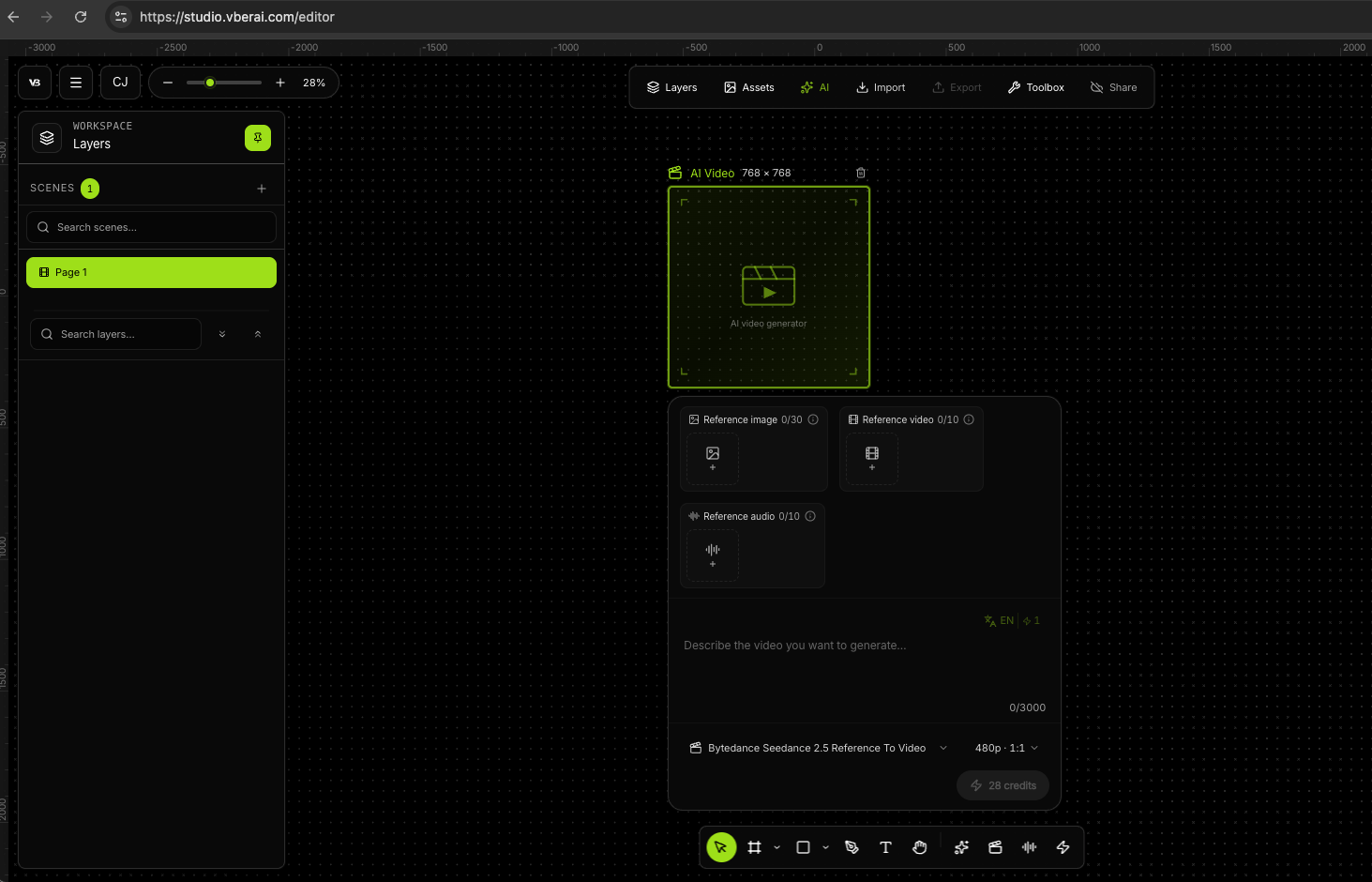
1. Add an AI Video node on the canvas
Open an AI Studio project canvas and add an AI Video node (label may match the UI). Decide first whether you need sequence-frame material or a promo / story cut—split and import paths diverge.
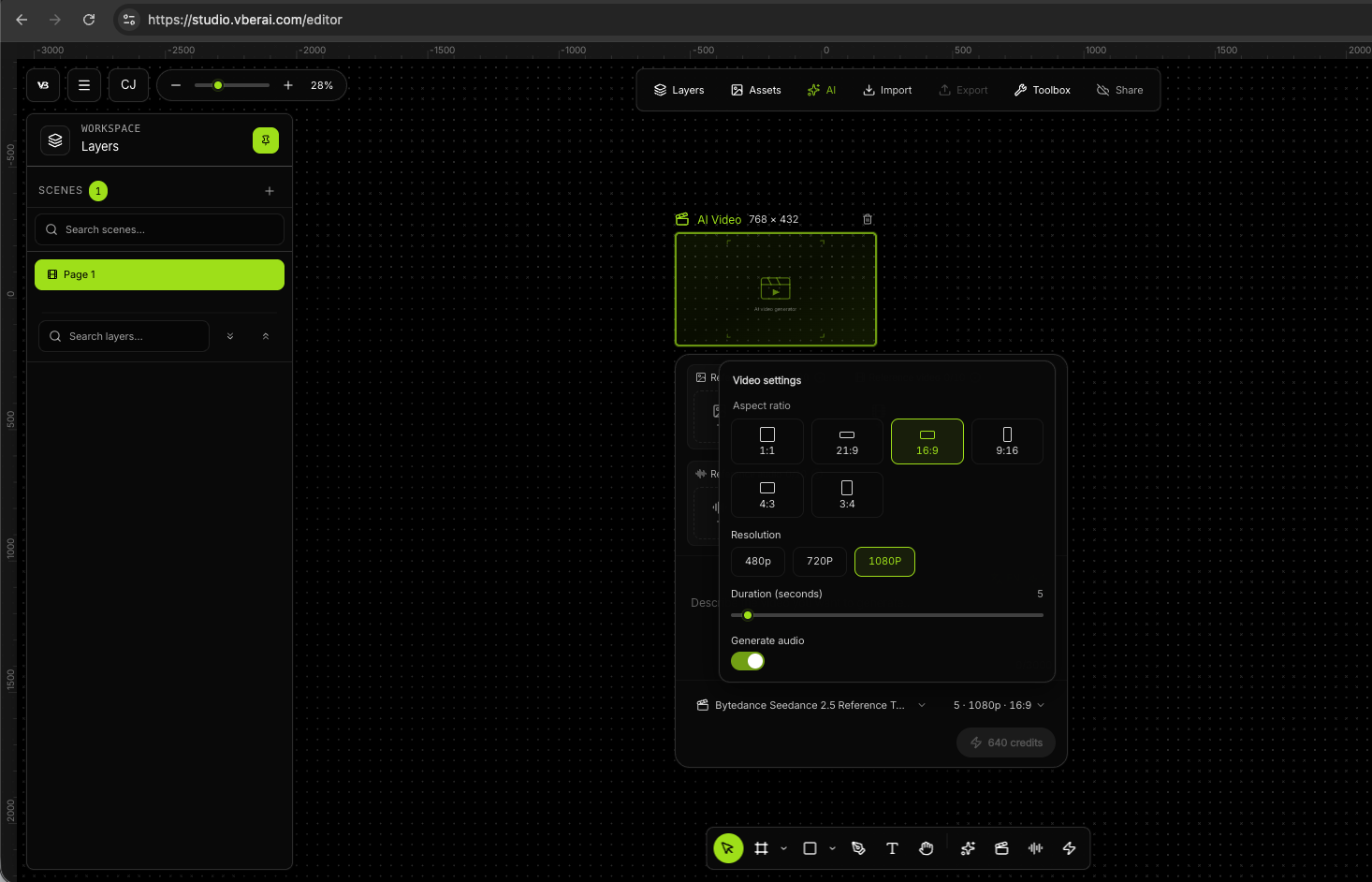
2. Choose driver and model
- Text: clear actions and camera (run, slash, standoff, skill cast)
- Image: existing key art / concept that should “move”
- First–last frame: motion bridges from pose A to pose B
Then set aspect, resolution, and duration.
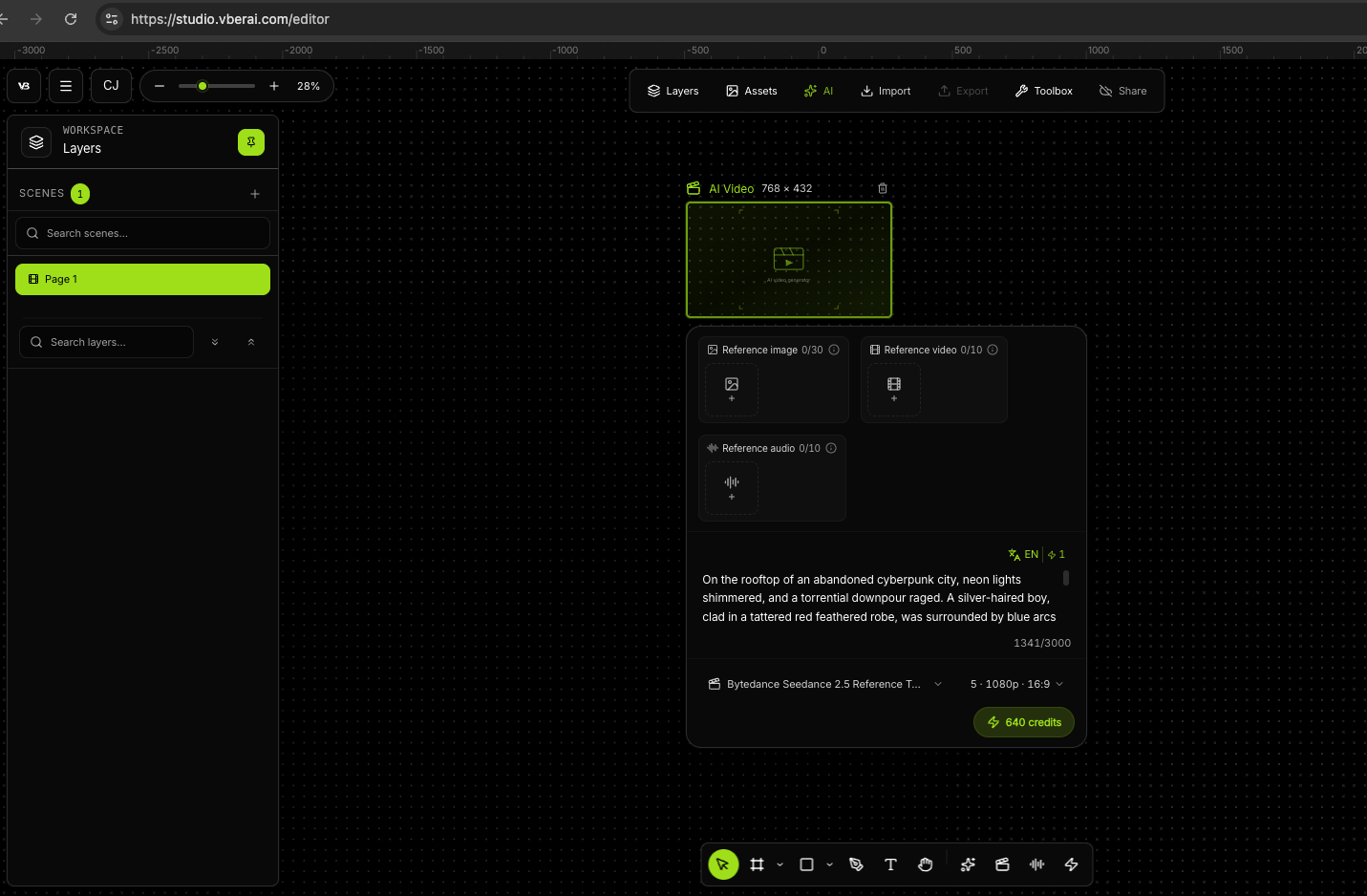
3. Write the prompt (reusable structure)
Skip adjective piles. Game shorts stay steadier with four blocks:
- Subject and action (who, what)
- Camera (angle, push/pull, slow motion)
- Light and materials (palette, key highlights)
- SFX mood (if using auto audio, describe the soundscape)
Example (text-to-video, promo / CG):
Neon-lit rooftop of a ruined cyber city in pouring rain. A silver-haired youth in a torn red jinbaori, blue arc energy around his body; opposite him floats a huge snarling form made of data streams. He stomps hard—ground cracks, rain flashes to white mist—then streaks as blue light behind the creature, light-blade drawing a meters-long crescent slash that particle-cuts every raindrop in its path.

Camera: handheld breathing feel; fast lateral track on the sprint; at the slash cut to wide fisheye with heavy perspective warp; finish on a speed-line push-in on determined eyes.

Light/color: high saturation contrast; blue-violet key with neon-pink rim. FX as pixel shatter and hard white bloom.

SFX: electronic-rock climax, harsh “zzz” energy charge, low explosive hits.
Keep the same four blocks when you change genres so model swaps stay comparable.
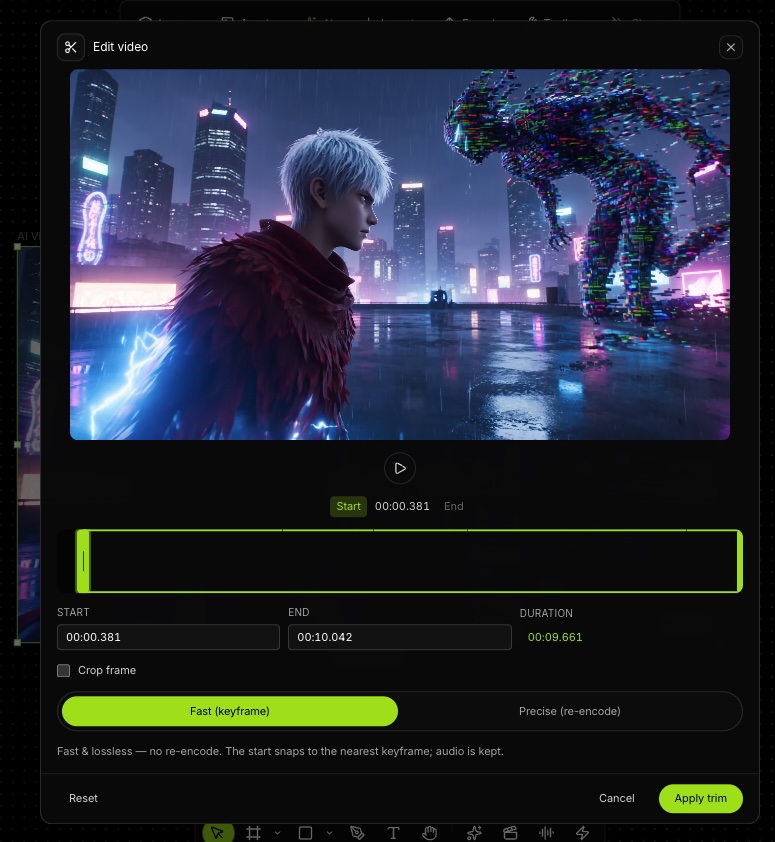
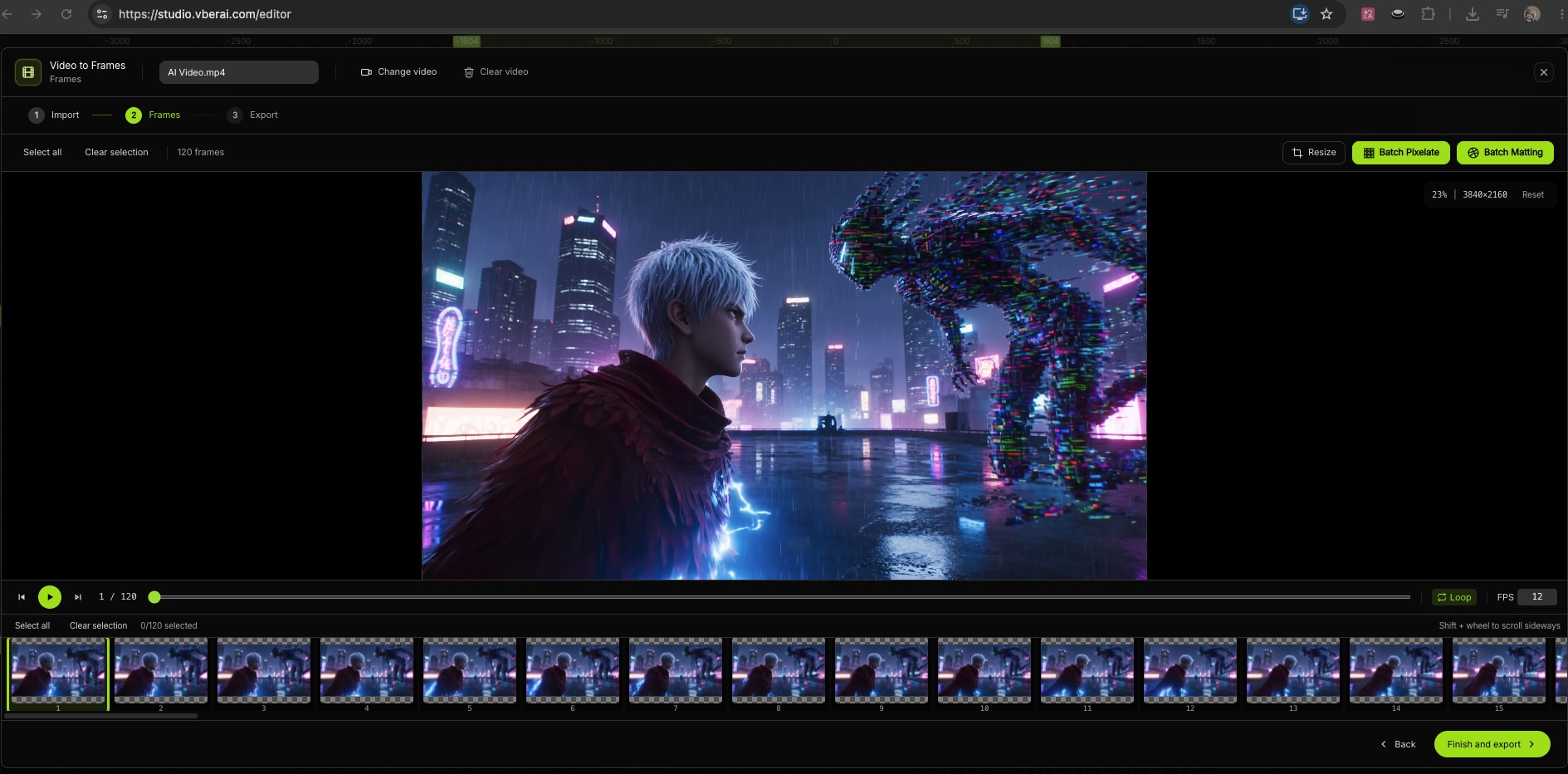
4. Generate, land on canvas, crop, and split frames
When generation finishes, the clip should appear on the canvas, not only in a download list. Then handle by use:
| Goal | Suggested ops |
|---|---|
| Skill / VFX loop | Trim head/tail waste → split frames → check alpha edges and order |
| Store trailer / short CG | Keep picture + audio → trim ends if needed → export video |
5. Deliver to Unity / Godot / Cocos (acceptance checklist)
Accept by output type—not only “does it play.”
Sequence-frame path (sketch):
- Drop the frame sequence or atlas into the project’s agreed folder
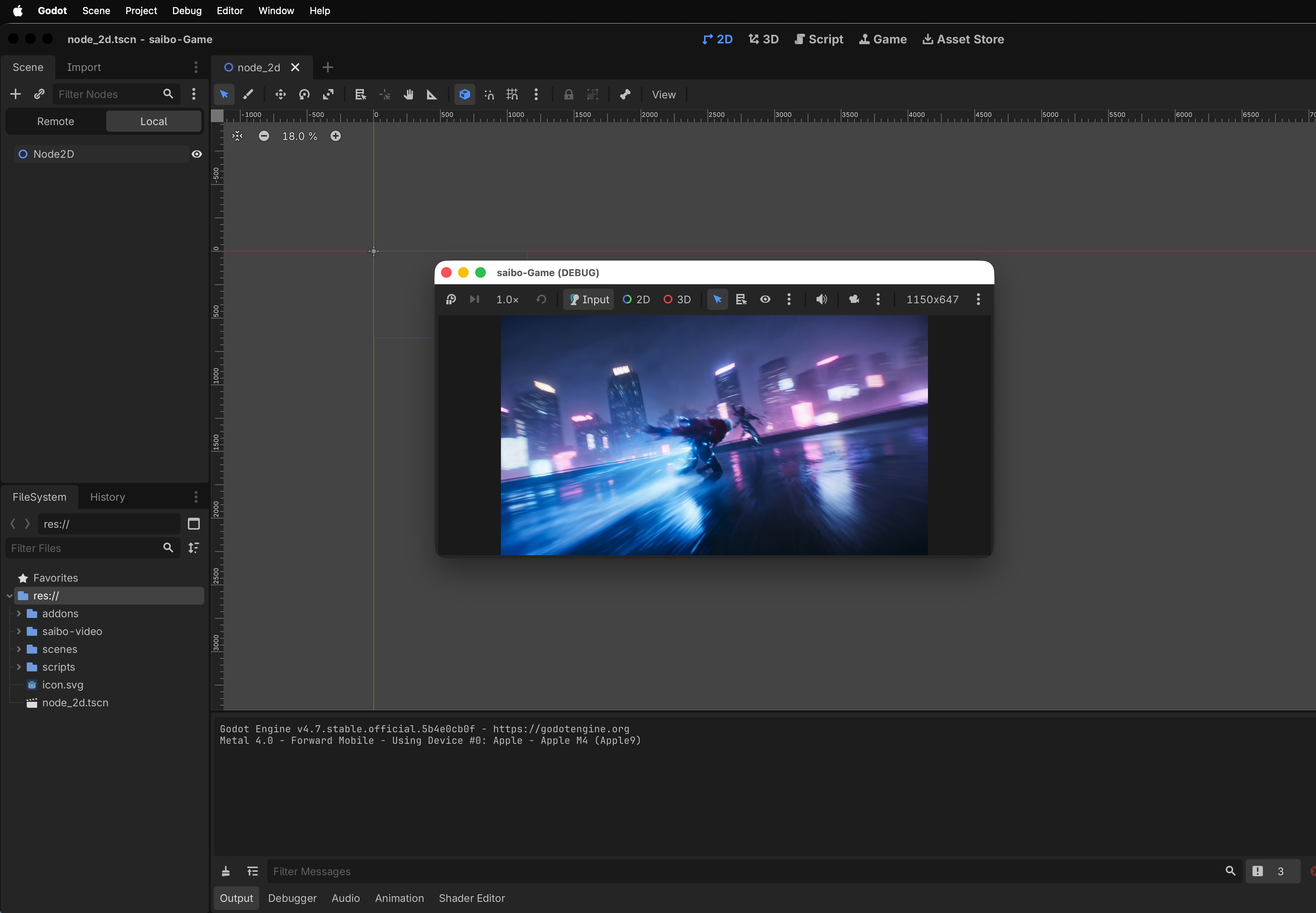
- Unity: Sprite Editor / 2D Animation; Godot: SpriteFrames; Cocos: animation clip or frame-sequence component
- Attach to character or VFX node, loop once, watch for skips and edge flash
- Re-check clarity at target resolution
Trailer / story CG path (sketch):
- Import video (and audio if separate)
- Unity:
VideoPlayer; Godot:VideoStreamPlayer; Cocos: matching video component - Play muted and with sound once each; confirm A/V sync
- Confirm it is a fixed cut—not bound to the player’s current look
Acceptance focus by genre
One canvas can run many genres; before shipping, re-run or polish to art direction.
| Genre | Driver emphasis | Watch in QA |
|---|---|---|
| Chinese ink wuxia duel | Text + detailed camera/light | Sword qi, leaves, end silhouette mush |
| Anime-leaning cyber ability fight | Text + strong camera language | Overexposed FX eating the silhouette |
| Photoreal underground boxing | Text + physical feedback | Sweat / impact looking too “plastic” |
| Assassin dash and draw | Short action lines | Whether it can become skill frames, not only a trailer beat |
Where it sits on the VberAI chain
| Capability | Owns this stage |
|---|---|
| AI Super Matting | Bitmap edges before canvas / engine |
| AI Studio · UI | PSD / Figma → engine UI hierarchy |
| AI Studio · Video | Sequence frames / promo & story CG → canvas edit → engine |
| Engine MCP | Scene, node, prefab work after assets are in the project |
Video fills “moving pixel assets”; UI import fills “interface structure”; MCP fills “in-editor wiring.” They stack; they do not replace each other. Fuller taxonomy: Which AI tools help Godot / Unity. Product boundaries: What is VberAI.
When to skip this path
- Script-only experiments with almost no performance or VFX frames → write logic first
- Cutscenes that must match player cosmetics / weapon skins → live in-engine direction
- Social clips that never enter the package → any finisher tool; split + engine delivery is optional
- Treating the first generate as final animation without frame picks or loop checks → “plays” ≠ “ships”
Summary: what it can and cannot do
Per product positioning, AI Studio video puts sequence frames and promo / story CG on one canvas: text, image, or first–last frame in; crop and split out; deliver to Unity / Godot / Cocos. For indies and small teams, the win is usually not “two more aesthetic points than another model,” but staying on an editable game workbench with an engine acceptance path.
Can: skill frames, VFX loops, store trailers, short CG not bound to player looks.
Cannot: replace hot-patchable Timeline / Sequencer cutscenes tied to cosmetics.
FAQ
How do AI game sequence frames get into Unity / Godot / Cocos?
Generate in AI Studio → land on canvas → crop and split → export or push per engine → attach Animation / Sprite / frame nodes and accept loops and alpha. Trailers use VideoPlayer / media nodes; verify A/V sync.
Can VberAI Studio generate skill frames and VFX loops?
Yes: drive with text, image, or first–last frame, then split into sequences for skills / VFX. First generates are rarely shippable; pick frames, drop bad ones, check loop seams.
How does this differ from Runway and other general video tools?
Those excel at finished film and camera control. AI Studio emphasizes landing on a game canvas, splitting frames, and engine delivery—in-package assets, not only MP4 download.
Does it replace Timeline / Sequencer?
No. Fixed short CG can go on VideoPlayer; appearance-bound, hot-patchable shows stay on the engine timeline.
Must sequence frames and trailers be generated separately?
Same video node class on the workbench; decide use before export: looping skills → split-frame QA; store promos → keep A/V cut.
Is this the same as Google AI Studio?
No. VberAI Studio is a game-asset canvas; Google AI Studio is a general model sandbox. Compare: Google AI Studio vs VberAI.
Where does audio come from? Must we re-check in-engine?
Auto SFX or reference audio at generate time. Always accept once muted and once with sound in-engine—not only in the web preview.
Is there an official walkthrough?
Yes: YouTube aPOhMMrJ8KI, channel @vber_ai.
Keep reading
More guides you might like
Game UI Design: Traditional Workflow vs AI Art + VberAI Studio In-Place Split
Compare PS/Figma hand slicing with VberAI Studio: import or AI-generate UI, auto split layers, export layered PSD or image sets. Effects, steps, and demo videos.
- game-ui-design
- game-ui-designer-flow
- ui-slicing
- AIGC
Scripts Compile but Hierarchy Is Off? Game Dev UI Handoff and MCP Checklist
For Unity / Godot / Cocos programmers: why Cursor scripts do not fix UI shell layers; acceptance checklist after design import, when Unity MCP / Godot MCP pay off, and binding logic after Studio Prefab export.
- game-dev-ai
- Unity MCP
- Godot MCP
- Cocos MCP
Mobile HUD Information Hierarchy: What to Show in Combat, Lobby, and Modals
HUD visibility and priority by game state; how it ties to Safe Area, floating text layers, and modal stacking—spec tables plus Play and device acceptance steps.
- game-ui-design
- game-dev-ai
- ui-to-engine
- hud