
VberAI In-Place Slice: Import Game UI Design Images into Unity / Godot / Cocos in One Click
VberAI Studio slices full-screen game UI design images in place, keeps layout and sizing, and exports to Unity, Godot, and Cocos in one click.
- vberai
- ai-studio
- inplace-slice
- game-ui
- ui-slicing
- unity
- godot
- cocos
- tutorial
VberAI Studio (≠ Google AI Studio) supports in-place slicing: split a full-screen game UI design image into separate UI elements, keep the original layout and sizing, then export to Unity / Godot / Cocos in one click—no hand-slicing loose PNGs and rebuilding hierarchy in-engine.
Traditional slicing vs in-place slicing
| Traditional slicing | VberAI in-place slicing | |
|---|---|---|
| Process | Box-select PNGs → drag into engine → retune position and hierarchy | AI detects UI elements → split in place → export per engine |
| Output | Loose images mainly | Layered modules + importable UI hierarchy / prefabs |
| Position data | Often lost after slicing; hand-align in-engine | Relative position and size kept with the split |
What in-place slicing means
- In-place — Split buttons, panels, and so on stay on their original relative coordinates and sizes.
- Slice / split — AI detects buttons, panels, icons, titles, and forms nameable, exportable modules.
- One-click into the engine — Choose Unity / Godot / Cocos Creator and export UI hierarchy or prefabs (per the Studio panel).
When you already have split Figma / PSD layers, import and export to the engine directly—no in-place slice step; see Figma→Unity and related guides. Use this article only for flat full-screen mockups or AI UI output.
Steps
1. Prepare a full-screen UI design image
Input can be:
- Full-screen main menu, HUD, shop, etc. generated on canvas
- Art / design mockups exported as PNG
- Other full-screen UI design images (prefer enough resolution and clear control edges)
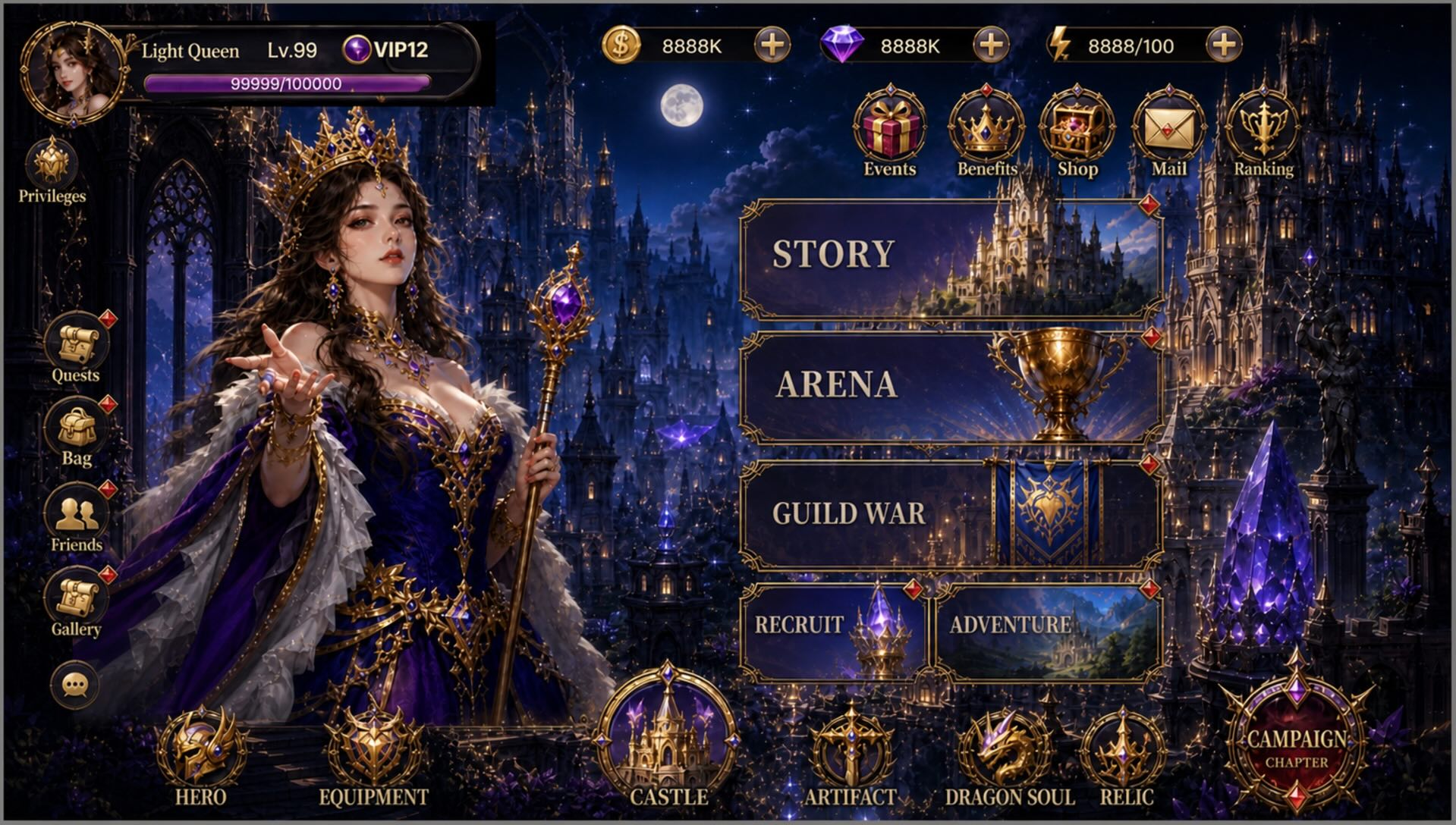
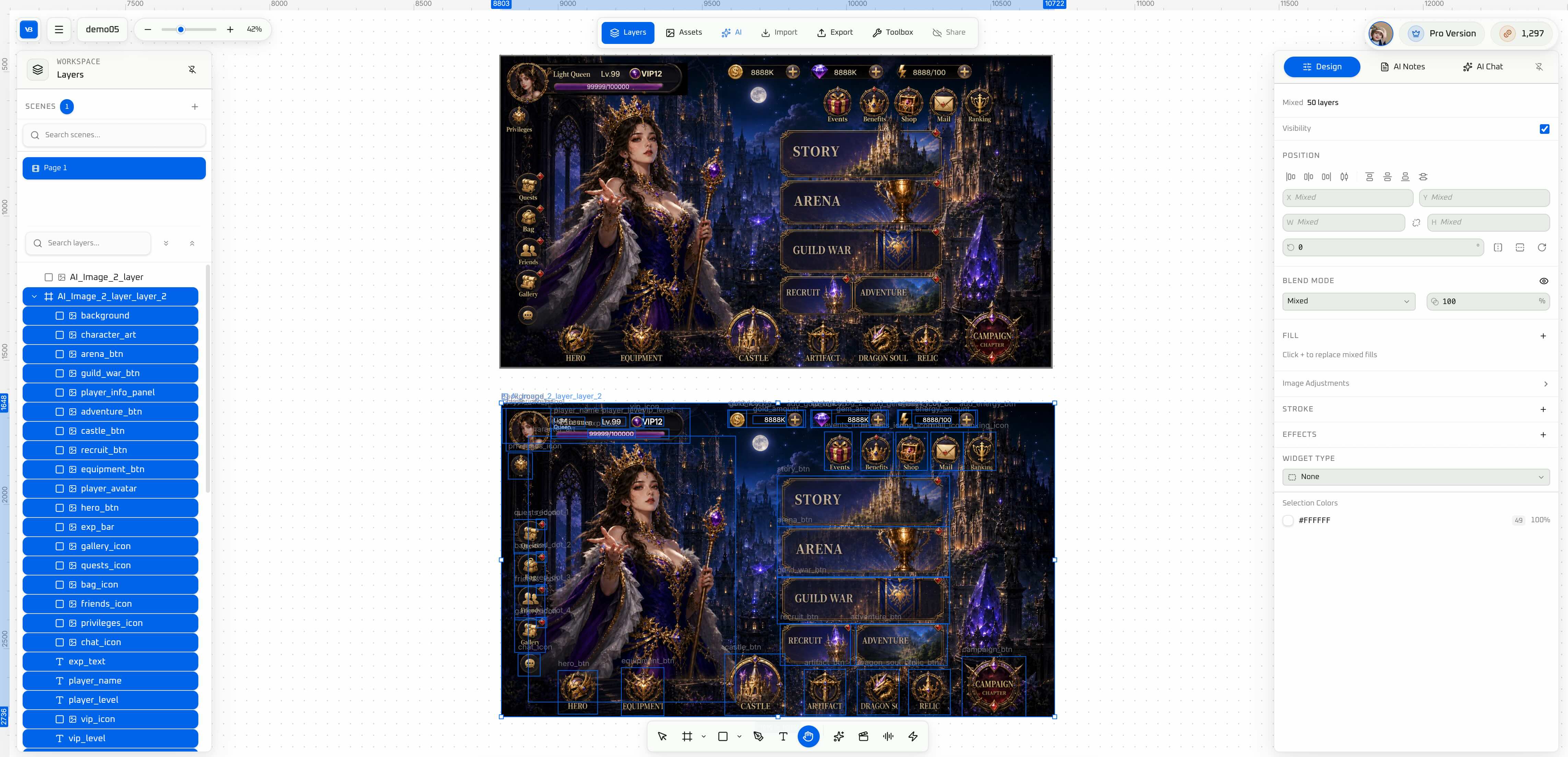
2. Split UI elements in place
On canvas, run split / extract:
- Separate clickable controls from decoration
- Keep original relative position and size
- Layer panel shows readable module names (for rename and binding)
3. Export to the target engine in one click
Pick Unity, Godot, or Cocos Creator. Prefer UI hierarchy / prefab output.
- Unity: Import under Canvas; check RectTransform
- Godot: Attach under a Control root; check anchors and Theme
- Cocos: Check Widget, Layout, and Button
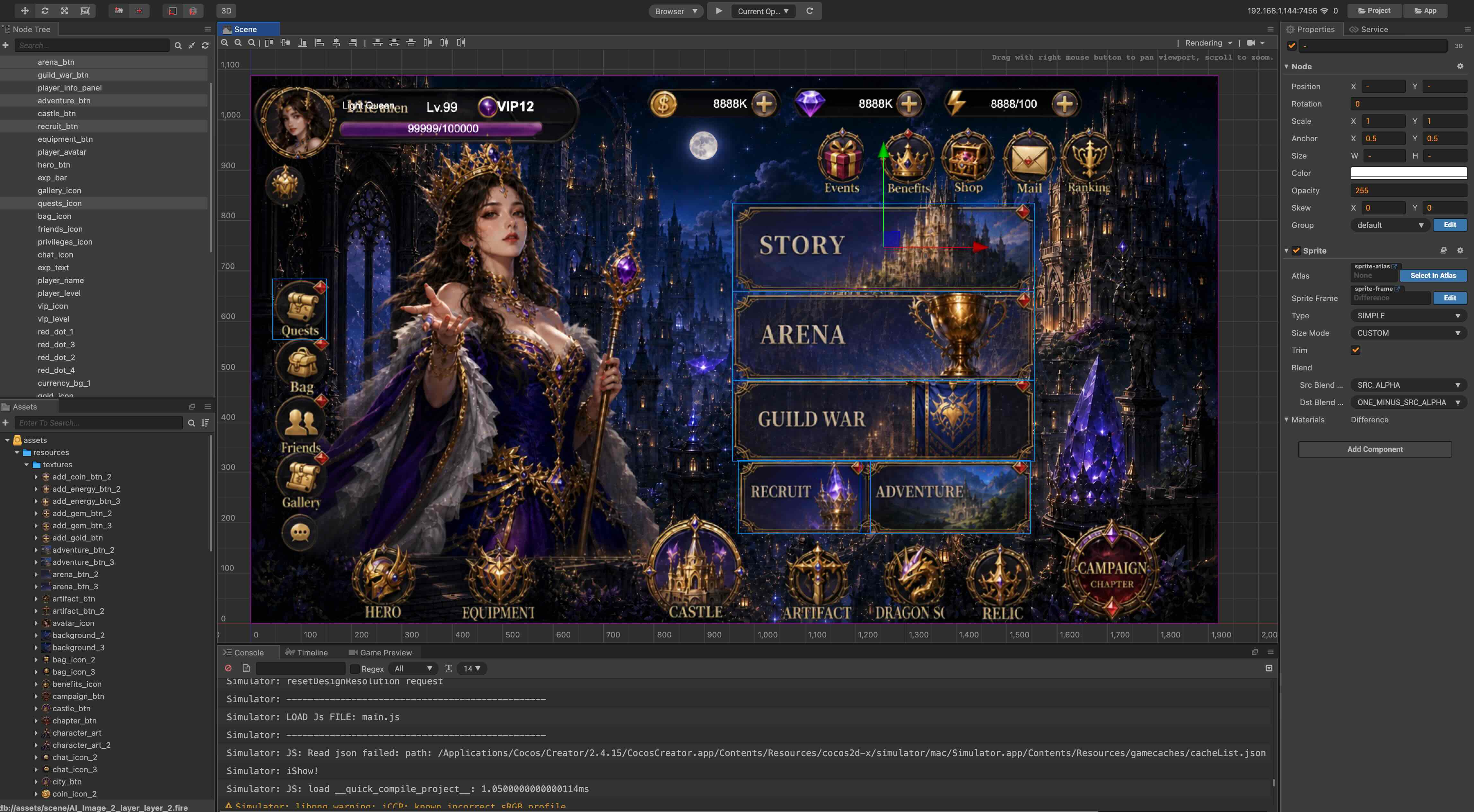
4. Accept in-engine
- Open the generated prefab / scene UI root
- Play at 16:9 and your target portrait ratio; click through the main path
- Confirm no global drift, clickable buttons, and no blocking layers
- For logic wiring, use Engine MCP from Cursor or similar clients
More detail and MCP wiring: Split game UI design images into the engine.
Limitations
- First export is rarely pixel-perfect; fonts, localization, and motion still need in-engine polish.
- Split quality depends on source clarity; blurry edges or chaotic layers may need re-export or hand fix.
- In-place slicing packs structure—it does not replace gameplay scripts.
- VberAI Studio ≠ Google AI Studio — see comparison.
Summary
The usual waste in game UI handoff is hand-slicing a full-screen mockup and rebuilding it in-engine. VberAI Studio puts full-screen design → in-place slice → Unity / Godot / Cocos on one canvas. Product: AI Studio.
FAQ
What is VberAI in-place slicing? In VberAI Studio, AI detects elements on a full-screen game UI design image, splits them in their original positions, keeps layout and sizing, then exports to the engine.
Can I one-click import into Unity / Godot / Cocos? Yes—export or push UI hierarchy / prefabs for the target engine (per current Studio capability). Smoke-test in Play after import.
How is this different from hand-slicing PNGs? Hand slicing often yields loose images with no layout semantics; in-place slicing outputs layered modules and engine structure, cutting rebuild work.
Is this the same as Figma / PSD import? Same AI Studio, different input. If Figma / PSD already has split layers, import the design file and export to the engine directly—no in-place slice; see Figma→Unity, PSD→Unity. Use this article only for flat full-screen comps (no layers).
Keep reading
More guides you might like
AI Image Gen: VberAI First to Ship GPT Image 2.5—Edit, Split, and Send Game Art to Engine
VberAI Studio is first to ship GPT Image 2.5 (also GPT Image 2, Nano Banana 2 / Pro, Wan 2.7, and more). Text-to-image, image-to-image, and presets stay on the game canvas for edit, split, and export to Unity / Godot / Cocos.
- vberai
- ai-studio
- image-gen
- text-to-image
Cocos Creator 2.x MCP Install: packages Folder & Cursor Setup
Cocos Creator 2.x MCP Pro install: unzip to packages, restart, activate, start MCP Server, verify in Cursor—not the 3.x package.
- cocos
- cocos-creator
- mcp
- cursor
Connect Claude Code to Unity MCP: Install, Configure & Verify
Use Claude with Unity MCP: Add package from disk, activate, start MCP Server (6589), copy Claude CLI command, verify Hierarchy read/write.
- unity
- mcp
- claude-code
- tutorial