
AI Image Pixelate in VberAI: Tune Block Size & Palette, Then Ship Assets to Engine
VberAI Studio image pixelation turns HD characters, maps, and props into controllable pixel art. Adjust block size, palette count, and color look with live preview—then keep editing or export to Unity / Godot / Cocos.
- vberai
- ai-studio
- pixelate
- pixel-art
- game-art
- sprite
- tutorial
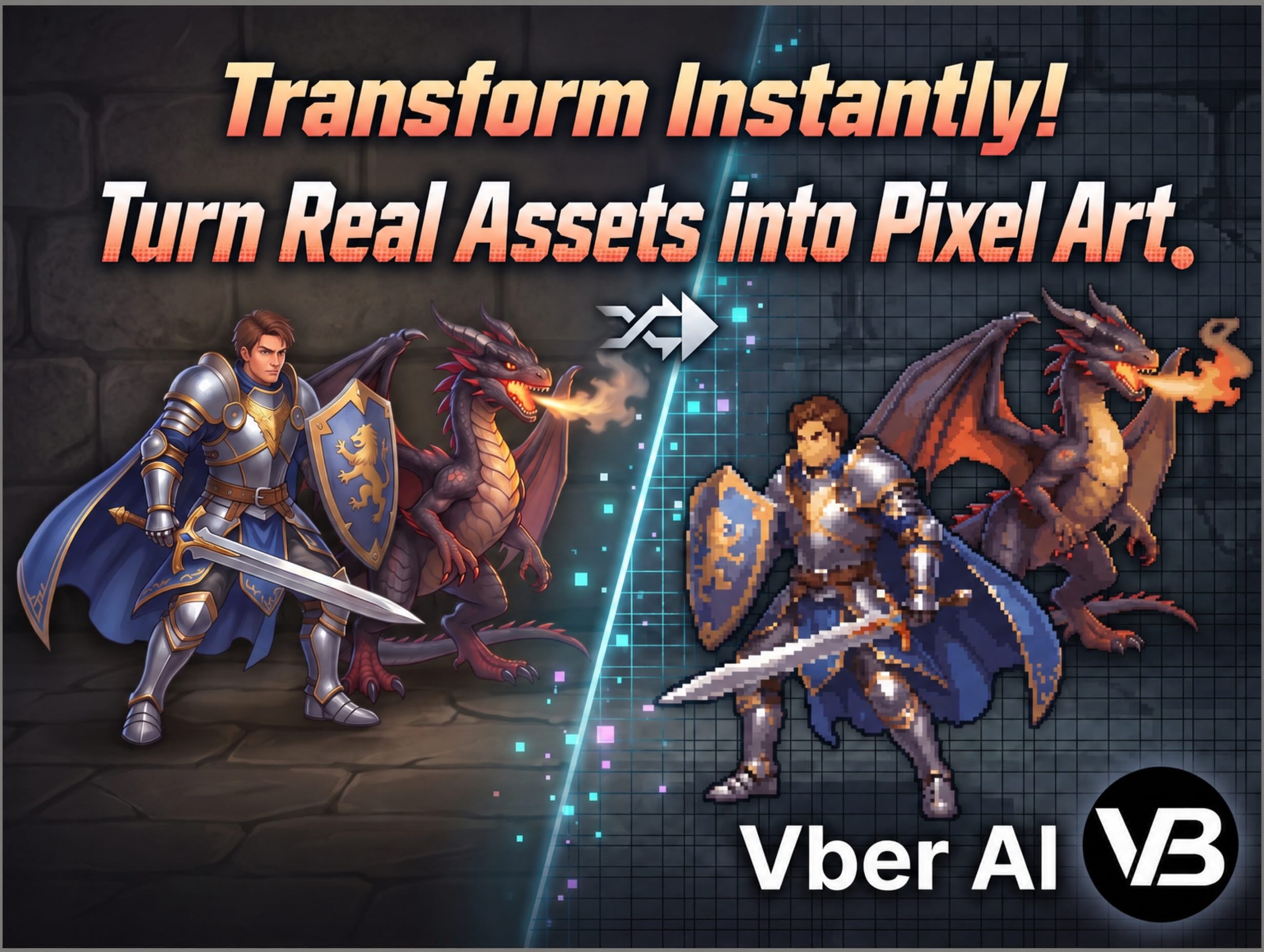
VberAI Studio (short: AI Studio, ≠ Google AI Studio) supports image pixelation: turn ordinary HD art into a controllable pixel look. Import, optionally run auto-split to isolate what you need, then pixelate—tune block size, palette count, and color look with live preview. No drawing cell by cell, and no bouncing between separate apps. Results stay on the same game canvas for further edit or engine handoff.
Start here: AI Studio.
Why pixelate on a game canvas
Pixel-art projects often hit one of two painful paths:
- Draw every cell by hand — characters, animals, maps, props, slow iteration.
- Off-site pixel tools — drop HD art into a separate site → download → re-import for cutout / slice / engine. The chain fragments.
AI Studio keeps pixelation on an editable game workbench: HD art comes in, and after pixelation you can keep going—not “download one pixel file and stop.”
| Off-site pixel tool | VberAI image pixelate | |
|---|---|---|
| Entry | Another site / plugin | Same Studio canvas |
| Asset prep | Often manual cutout | Auto-split, then pixelate |
| Controls | Tool-dependent | Block size, palette count, color look (per panel) |
| Afterward | Usually just a download | Keep editing; then matte / split / export to engine |
What image pixelation means here
In Studio terms, a shippable definition is:
- Input — HD characters, animals, maps, props, and similar game art (imported or already on the canvas; per panel).
- Auto-split — isolate the parts you want to pixelate before converting, instead of blocking the whole frame.
- Pixelate — convert to a pixel look, with controls for:
- Block size — how coarse the grid feels
- Palette count — how many color steps
- Color look — tone and overall vibe
- Live preview — change parameters and compare styles before you commit.
It covers “HD concept / photo-like art → pixel-style game assets.” It does not replace final hand polish under strict pixel rules (anchors, locked palettes, engine filter settings still need a human pass).
Before / after: HD → pixelate
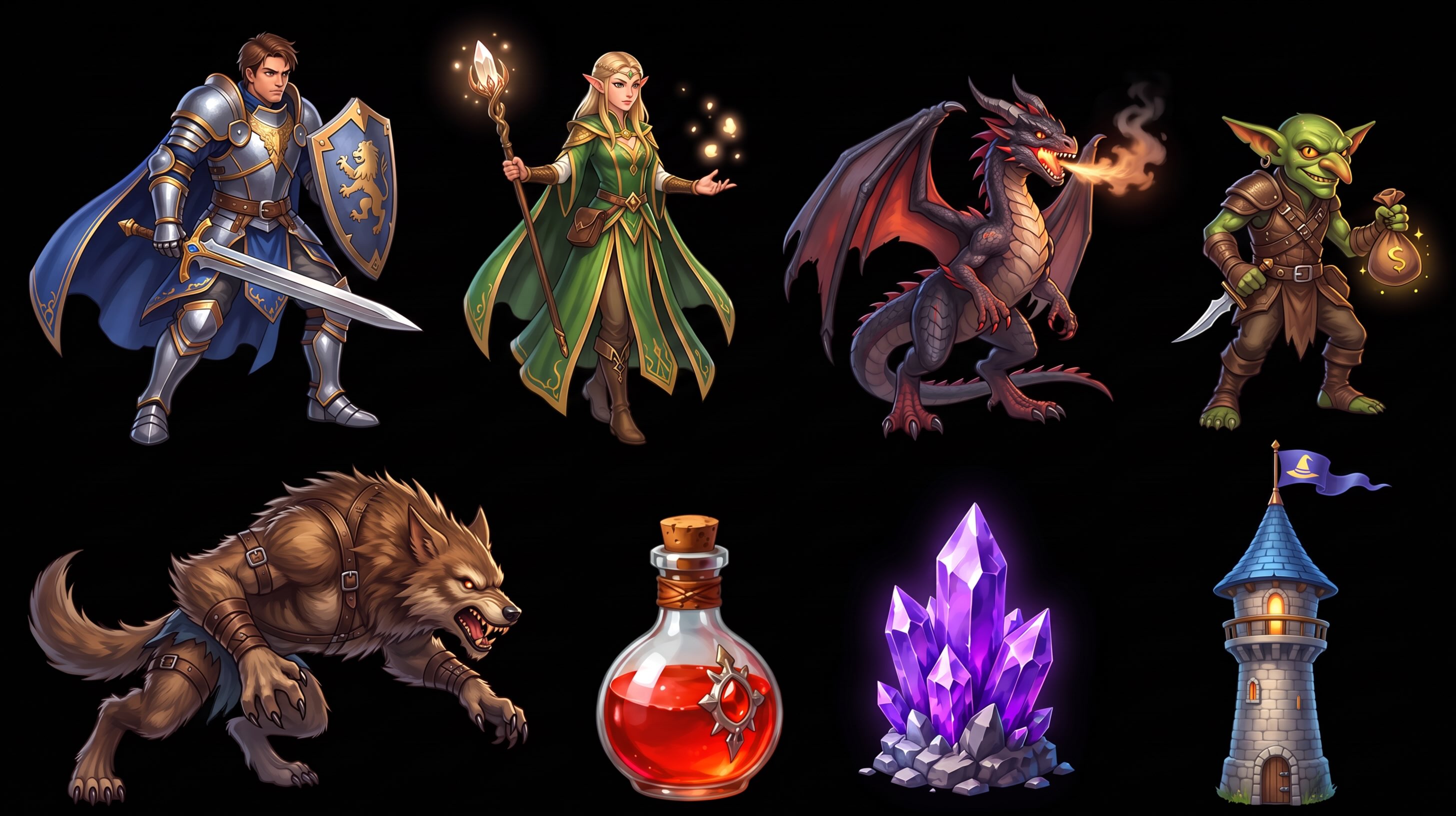
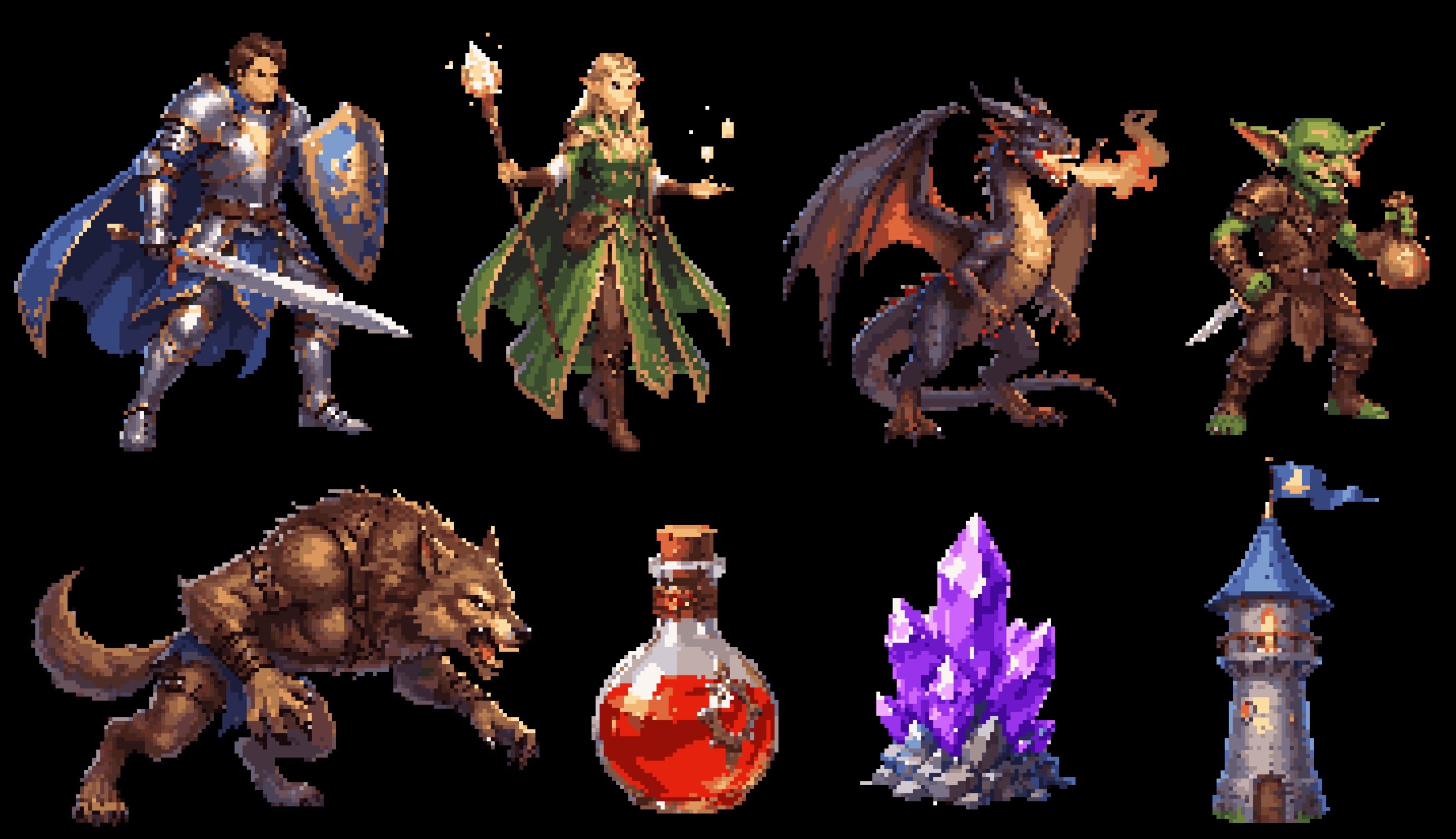
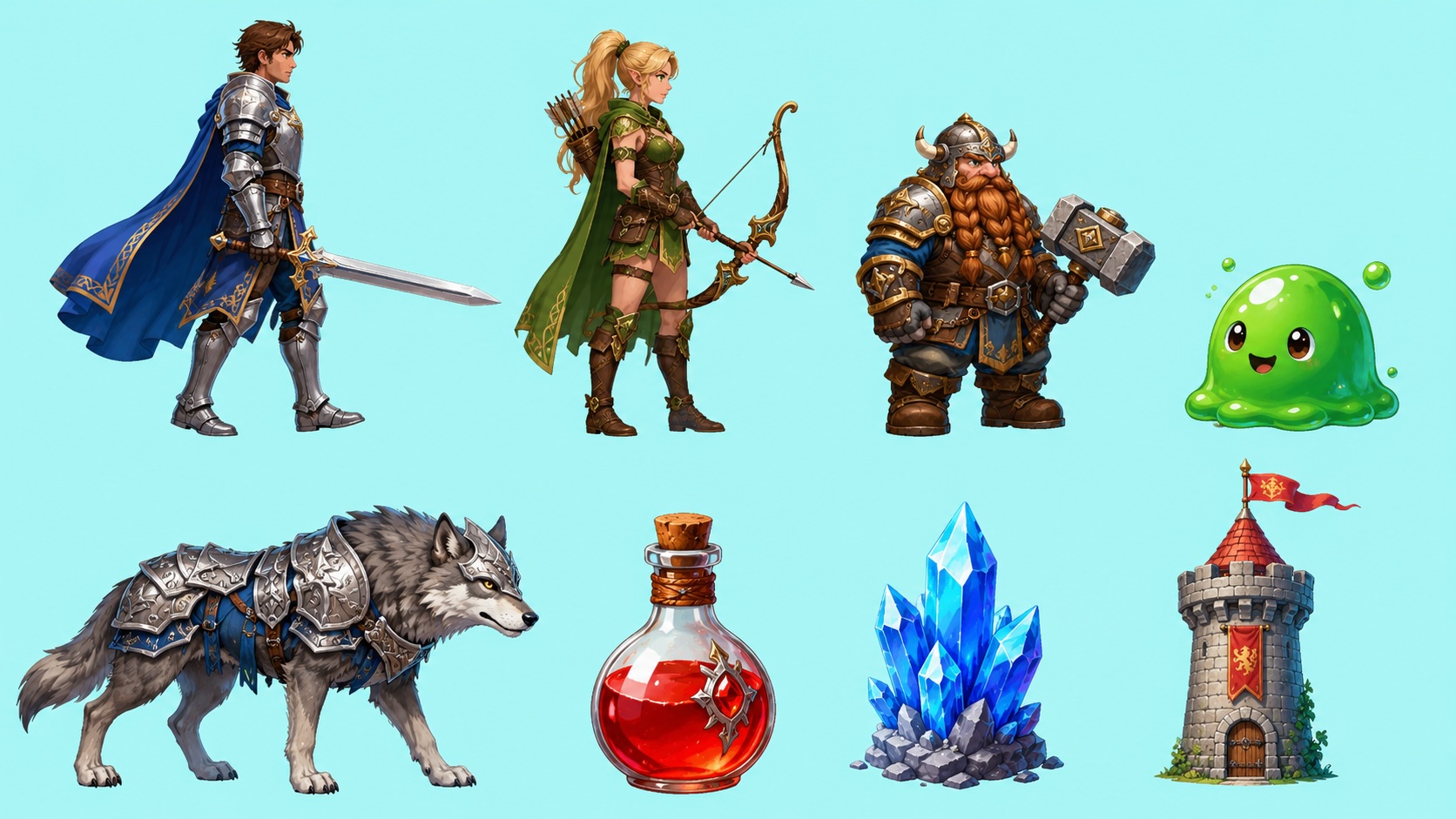
Two pairs from the same workflow: HD source above, Studio pixelate below (parameters per panel).
Example 1
HD source:
After pixelate:
Example 2
HD source:
After pixelate:
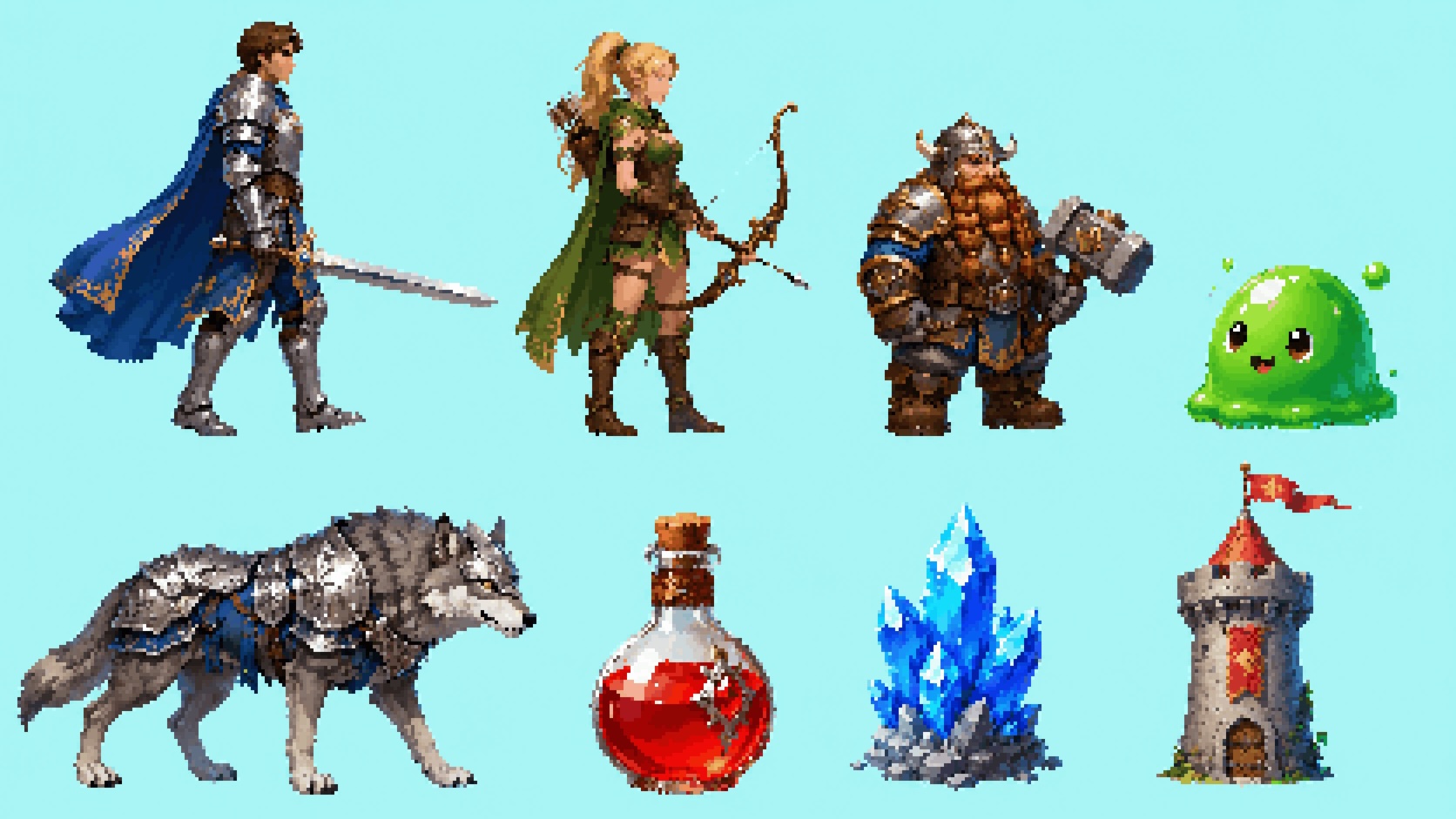
How to do it
1. Import HD art
Bring characters, animals, maps, or props into the AI Studio canvas.
2. Auto-split
Run auto-split so you isolate the assets that should become pixels—and avoid grid-ifying background or unrelated regions.
3. Pixelate and tune
Open pixelate, adjust block size, palette count, and color look for the project tone, and use live preview to pick a version.
4. Stay on the canvas
Pixelated results remain on the same canvas. For transparency or packing, continue with matting / layer split / export to engine (per current Studio paths).
Boundaries
- First pixelate pass rarely equals shippable finals; silhouette, palette consistency, and trademarks still need review.
- Atlases, filter mode (e.g. Point), and naming land in the engine project.
- Panel labels and parameter names follow current Studio UI.
- VberAI Studio ≠ Google AI Studio; see the comparison.
Wrap-up
You don’t need “one more pixel filter.” You need HD assets that can become usable pixel-style game art in-pipeline. Import → auto-split → pixelate with live preview → keep editing or ship to engine—all in AI Studio.
FAQ
Does VberAI support image pixelation?
Yes. On the AI Studio canvas you can pixelate HD assets and tune block size, palette count, and color look (per the product panel).
Why auto-split first?
Auto-split isolates the target asset before pixelation, so backgrounds and unrelated regions are less likely to get grid-ified—better for characters, props, and other singles.
How is this different from a standalone “HD to pixel” site?
Most tools stop at a download. Studio keeps pixelation on the game canvas so you can keep editing or export to Unity / Godot / Cocos.
What assets is it good for?
HD characters, animals, maps, props, and similar game art; strict pixel finals still deserve an art pass.
Keep reading
More guides you might like
Floating Damage Numbers: Handoff Acceptance and Engine Implementation
Fail criteria when popups blur, miss glyphs, sort wrong, or stutter; choosing TMP vs bitmap digits, pools and Canvas order, Unity UGUI acceptance steps, and how design digit art plugs in.
- game-ui-design
- game-dev-ai
- ui-to-engine
- bitmap-font
Cocos Creator 2.x MCP Install: packages Folder & Cursor Setup
Cocos Creator 2.x MCP Pro install: unzip to packages, restart, activate, start MCP Server, verify in Cursor—not the 3.x package.
- cocos
- cocos-creator
- mcp
- cursor
Game UI Design: Traditional Workflow vs AI Art + VberAI Studio In-Place Split
Compare PS/Figma hand slicing with VberAI Studio: import or AI-generate UI, auto split layers, export layered PSD or image sets. Effects, steps, and demo videos.
- game-ui-design
- game-ui-designer-flow
- ui-slicing
- AIGC